Reply to customers in Bitrix24
A Bitrix24 administrator connects the active WhatsApp line to an Open Line, assigns agents and configures CRM handling.
Bitrix24 → CRM → Customers → Contact Center → TehProf.kz Dialogs — WAWEB or TehProf.kz Dialogs — WABA
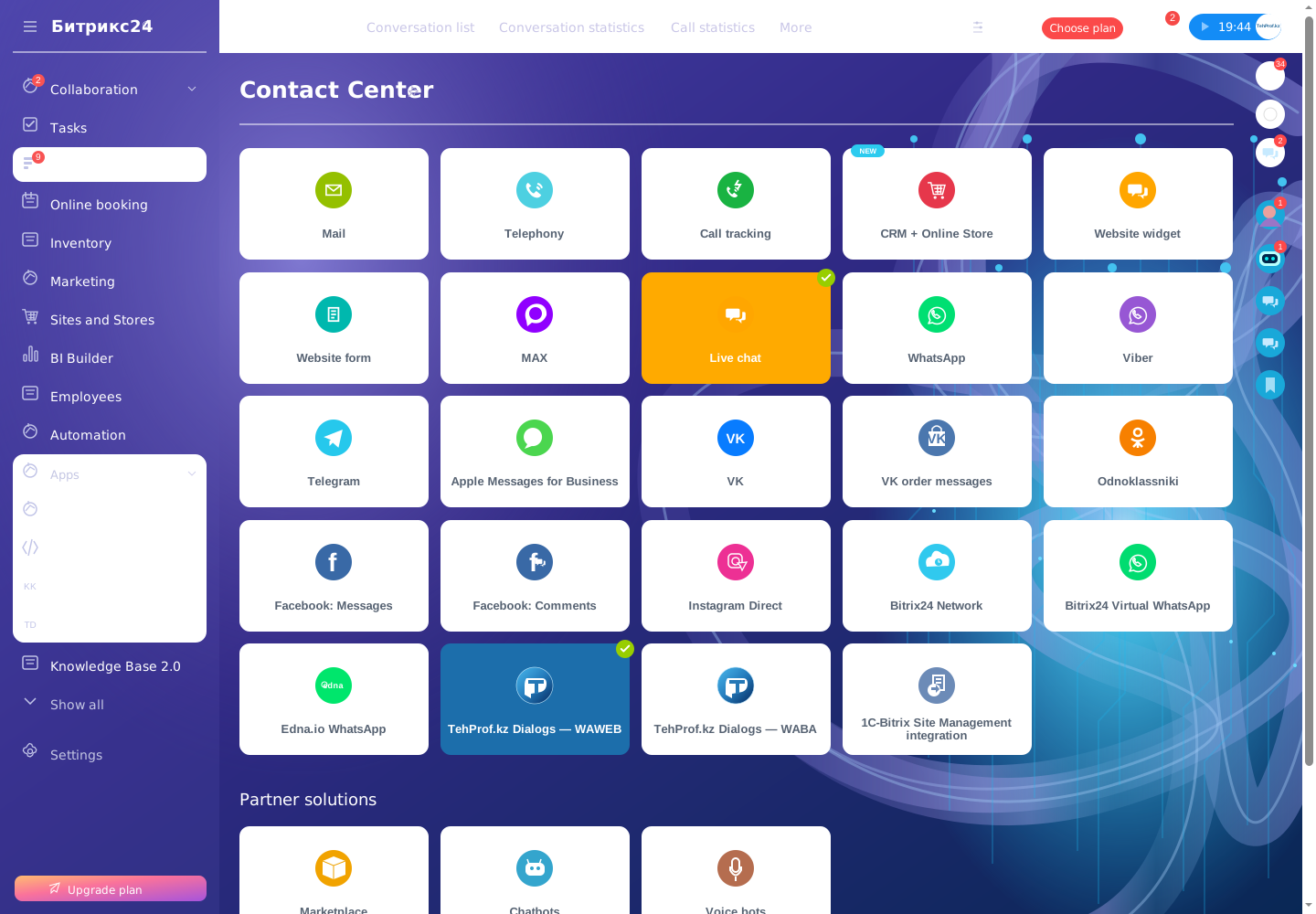
- Open the correct tile, select an Open Line or create a new one. To change an existing connection, choose Edit.
- In the channel selection, match the number and exact name of your paid line. If several lines have the same number, do not choose a row just because it is available; ask TehProf.kz to confirm the name if unsure. Select the intended available row and choose «Подключить» (Connect) below the list.
- In Dialogs, grant agents access under Settings → Channel access. At the bottom of the connection page, select the Open Line and choose Configure on its right; enable the line and configure its queue and working hours.
- Choose how to handle a new customer: create a lead or deal automatically, or let the agent create it manually. If needed, enable routing of existing customers to their responsible agent.
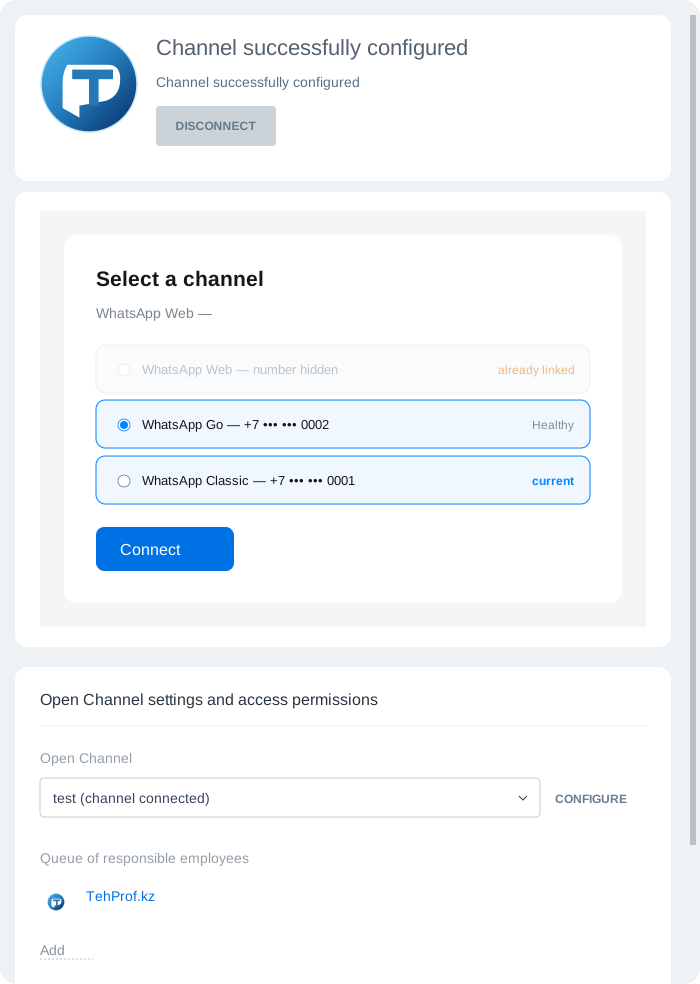
«Отключить» (Disconnect) in the upper card disconnects the whole connector. Select a number using «Подключить» (Connect) below the list.
- Send a message from a new customer’s phone. In Bitrix24, open Messenger → Contact Center → Unanswered, select the conversation, choose Reply and send a message.
- Check receipt on the phone. From the chat’s ··· menu, open the linked lead or deal; for manual creation, choose Save to CRM. Check the owner and conversation history.
- Repeat with an existing customer if routing to the responsible agent is enabled.
Bitrix24 → deal, contact, company or lead → TehProf.kz Dialogs; if the tab is missing, check More
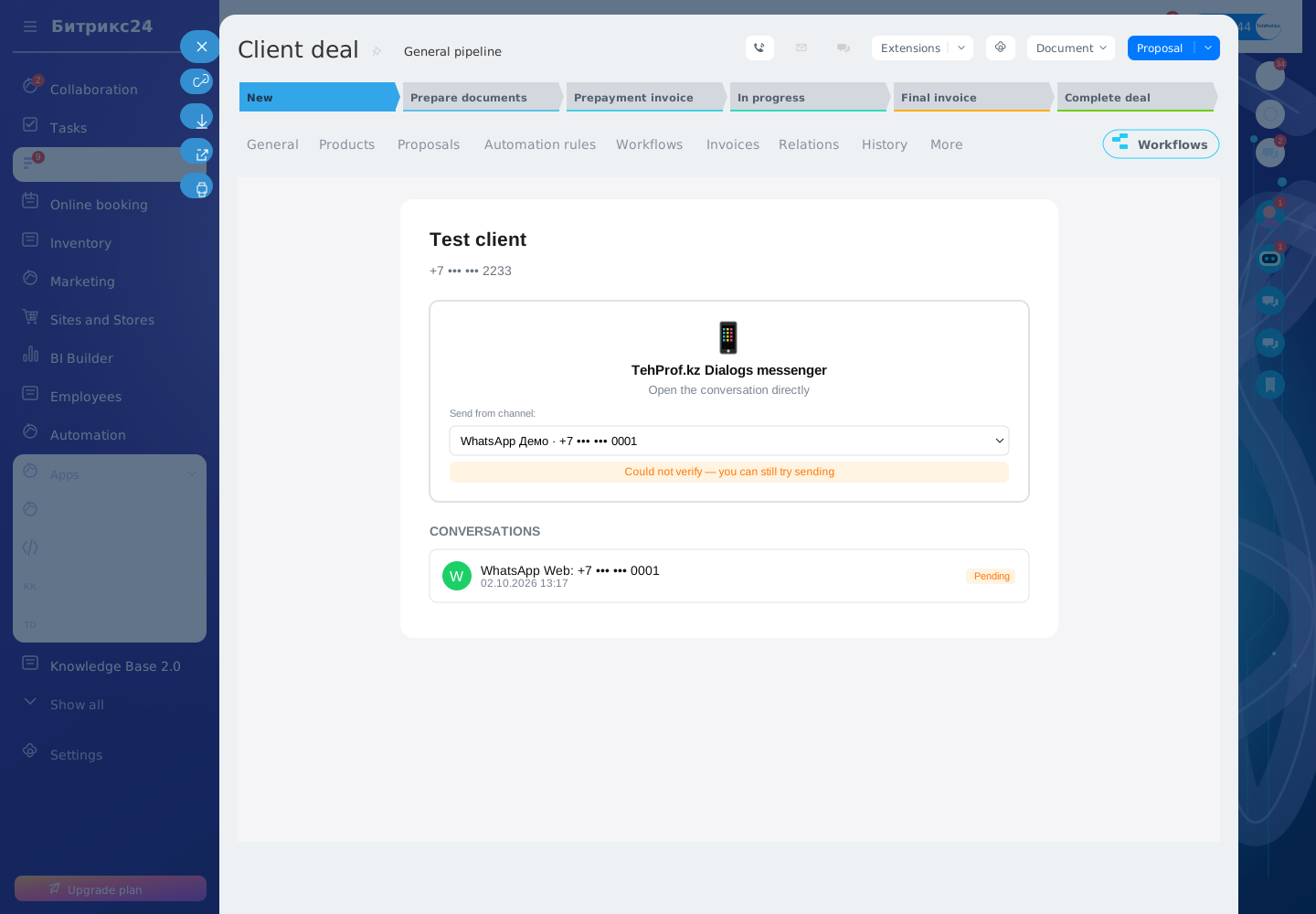
If the customer has one available conversation, it opens directly. If several numbers or lines are available, choose the intended one. If there is no phone number, add it to the CRM record first.
If the tile is missing, the administrator checks the app installation on this portal. If the tile is present but the number is missing, check the line’s active status and existing link. If the number is linked but chats do not arrive, check that the Open Line is enabled and the agent has queue access.
To test groups, use a line with groups enabled: send a group message, find it in the Dialogs list, check the group name and author, then reply to its participants. To work in Bitrix24, check that this same line is linked to an Open Line and that the message and reply arrive.