Create and send an official template
Use an official template for first contact or to continue after 24 hours without a customer reply. Meta reviews the text first. You can reuse an approved template and change its variable values for each send. Before first contact, obtain the customer’s permission to receive your company’s WhatsApp messages.
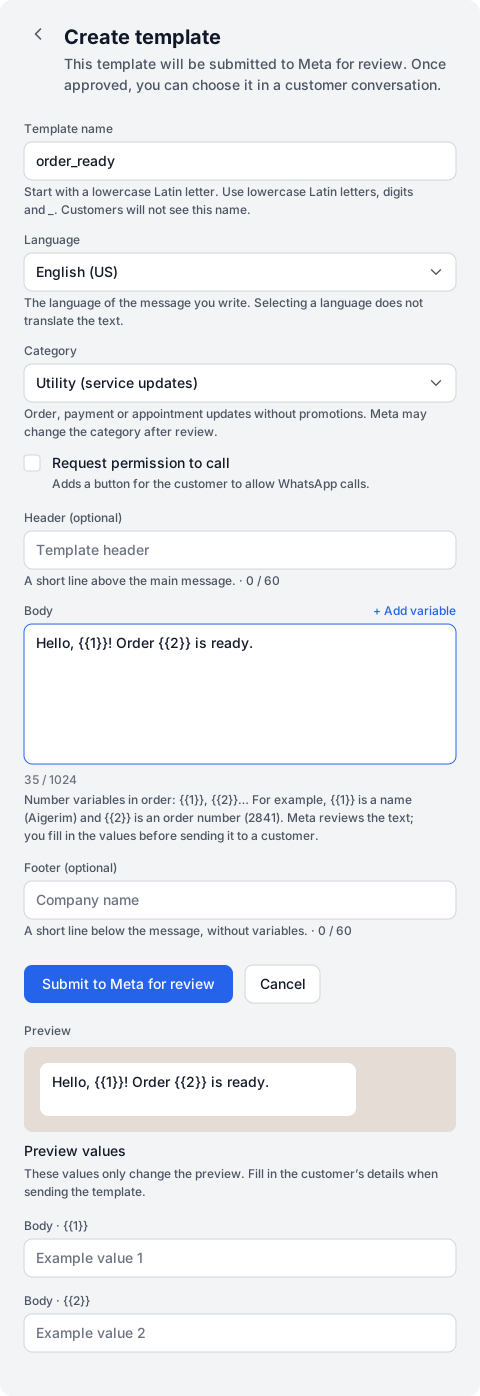
Dialogs → Channels → official line → Templates → + Create template
| Field | Example and purpose |
|---|---|
| Template name | order_ready: an internal name for search and automation. Start with a lowercase Latin letter, then use lowercase Latin letters, digits and underscores. |
| Language | English (US). Select the message’s language, which can differ from the interface language. Another language needs a separate template version. |
| Category | Utility (service updates): a message about an existing order. Promotions belong to Marketing; login codes belong to Authentication. |
| Header | An optional line above the body. Leave it empty for this example. |
| Body | Hello, {{1}}! Order {{2}} is ready. |
| Variables | {{1}} is the customer name; {{2}} is the order number. Number them in sequence from 1 and fill the values when sending. |
| Footer | Optional text below the message. Leave it empty for this example. |
| Request permission to call | Adds a button for the customer to allow WhatsApp calls. Leave it off for this order update. |
- Complete the form with order_ready, English (US), Utility (service updates) and the body Hello, {{1}}! Order {{2}} is ready.
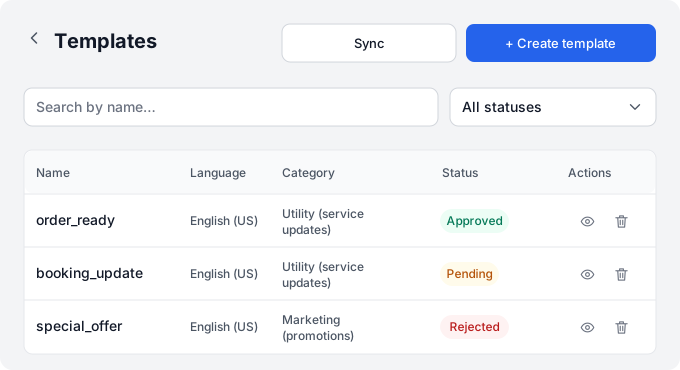
- Check the text and choose Submit to Meta for review. The template appears in the list as Pending.
- Wait for Approved. Sync refreshes the information from Meta; if review is still in progress, return later.
You can enter Aigerim and 2841 under Preview values to check the wording. These values only affect the preview; fill in the customer’s details again when sending.
| Status | What to do |
|---|---|
| Pending | Wait for Meta’s decision |
| Approved | Available to select when sending |
| Rejected | Check the reason in Meta and correct the content |
| Paused or Disabled | Sending is unavailable; check the template in Meta |
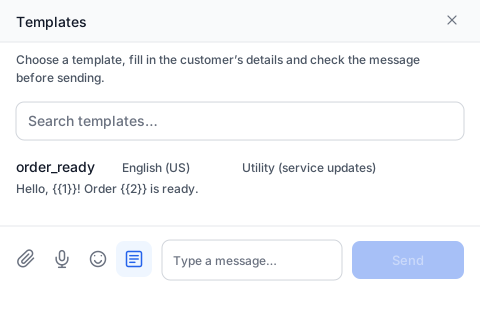
Send in an existing conversation:
- Open the customer conversation on the intended official line. Press + beside the reply field, choose Template and find order_ready in the required language — Meta templates are labelled Meta.
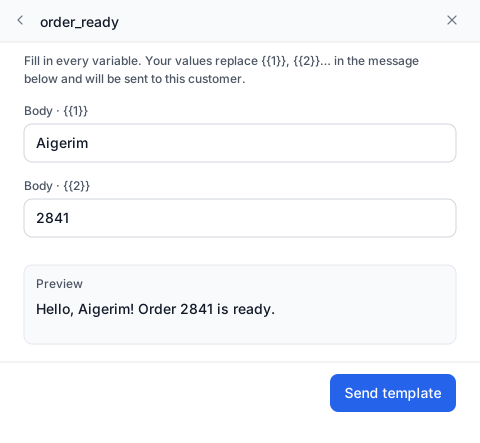
- Enter Aigerim in Body · {{1}} and 2841 in Body · {{2}}. Fill every variable; otherwise the send button remains unavailable.
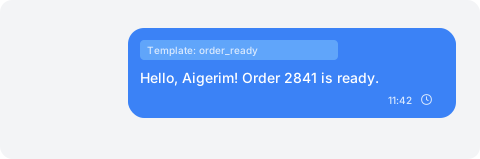
- The preview should read: Hello, Aigerim! Order 2841 is ready. Check the name, order number and selected customer.
- Choose Send template. Check the message status in the thread. During initial setup, also confirm receipt on the phone.
Send a first message to a new customer:
- Use + above the conversation list. In New conversation, choose the official line and enter the recipient’s phone number in international format.
- Select order_ready in the required language, fill the name and order number, check the text and choose Send.
- If the customer already has a conversation with an open 24-hour window, Dialogs opens that chat for a plain-text reply. The selected template is not sent automatically.
All numbers in one WABA share their templates. Deleting a template removes it from every number on that account. Check usage and quality under WhatsApp Manager → Message templates.
If the template is approved but the message is not delivered, check the line status and licence expiry, template language, number restrictions and payment method in WhatsApp Manager. Send support the send time and displayed error.