Problems connecting through Facebook (Meta)
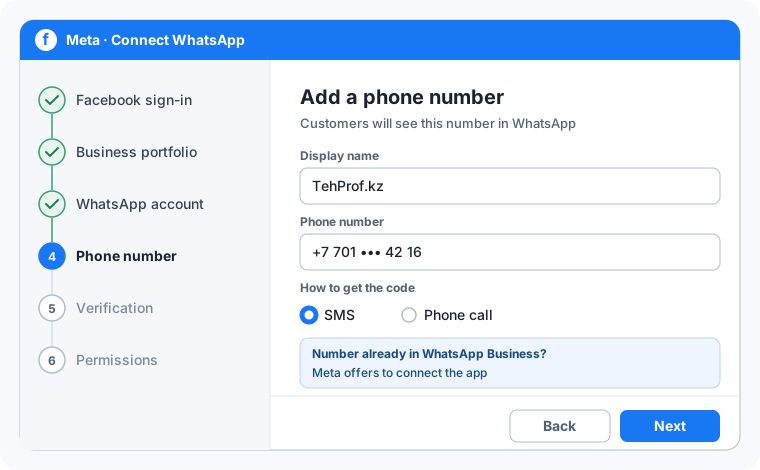
Official WhatsApp is connected in a Meta window opened by «Connect via Facebook» or «Reconnect via Facebook» on the line in «Channels». Below is what you will see in that window and how to solve common problems. Error texts are quoted as Meta shows them.
- Sign in to Facebook or «Continue as …». The person connecting needs full access to the company business portfolio.
- Business portfolio: choose the company portfolio or create one.
- WhatsApp account: choose an existing one or create a new one — enter the display name, category and time zone.
- Phone number: enter the number of this line. If it already works in the WhatsApp Business app, Meta offers to connect the app (Coexistence) and shows a QR code to scan in the app.
- Number verification: a code by SMS or phone call.
- Permissions: check what TehProf.kz Dialogs gets access to and confirm. Wait for «Done» — the window closes by itself.
The Facebook window did not open or closed at once
Most often the browser blocked the pop-up. The connection runs in a separate Meta window, and the Dialogs tab must stay open.
- Allow pop-ups for dialogs.tehprof.kz: the icon in the address bar → «Always allow».
- If Dialogs is open inside Bitrix24, open dialogs.tehprof.kz in a separate browser tab and connect from there.
- Turn off ad blockers and privacy extensions for a while, or try another browser.
- Complete all steps in one browser and do not close the Meta window before «Done».
The window opened with someone else’s Facebook account
Meta continues with the account already signed in in this browser. Sign out on facebook.com in the same browser or press «Not you?» in the window, then start again from the line.
«Your Facebook account is too new to create a business account» or «You have reached the limit for the number of Businesses»
Meta does not let a new Facebook account create a business portfolio straight away — wait about an hour or sign in with an account in long use. At the portfolio limit, choose the existing company portfolio instead of creating a new one.
My business portfolio is not listed, or «User does not have permission to create WhatsApp Business Accounts»
Only a portfolio admin can create a WhatsApp account in it. Ask the portfolio owner for full access (business.facebook.com → Settings → Users → People) or let them connect.
«This number is registered to an existing WhatsApp account»
The number already works in WhatsApp — regular, WhatsApp Business on a phone, or with another API provider. What to do depends on where it is now.
- WhatsApp Business on a phone: choose connecting the app in the Meta window — this is Coexistence, the app stays. See «Keep WhatsApp Business on the phone».
- Regular WhatsApp: move the number to the WhatsApp Business app and connect Coexistence. Deleting the WhatsApp account on the number erases chat history on the phone — back it up first and agree the step with TehProf.kz.
- Another official provider: this is a provider change — see «Move from another official provider».
- After the number is disconnected, Meta may need up to 3 minutes before it becomes available.
«Your phone number isn’t eligible to connect to the WhatsApp Business Platform» or «Update your WhatsApp Business App to the latest version»
Coexistence needs WhatsApp Business app version 2.24.17 or later — update it. If the number is new in the app, Meta may not admit it at once: it needs the number’s history in WhatsApp Business. If Meta says the feature is unavailable for numbers from this region, Coexistence is not possible for the number — ask TehProf.kz for another way.
The number is already connected to another business platform
If the number in the WhatsApp Business app is already connected to another partner, disconnect it in the app: Settings → Account → Business Platform → the connected platform → «Disconnect». Wait 15 minutes and start again.
«The phone number is already linked to a Facebook Page»
The number is linked to a Facebook Page in another portfolio. Remove the Page from that portfolio (Meta Business Suite → Settings → Accounts → Pages → Remove) or connect another number.
The verification code does not arrive
Choose «Call» instead of SMS. The number must receive calls or SMS; Meta does not support numbers with a voice menu (IVR). Do not request the code many times in a row: after too many requests or wrong entries Meta blocks attempts for a while — after «You have guessed too many times» wait about 12 hours, then return to the window and choose the already created account and number.
«Your verified name violates WhatsApp guidelines» — display name rejected
The display name must clearly belong to your company and match how the brand is written on the website and in documents. Generic words, a place name alone or a slogan do not pass. Fix the name and retry. You can change it later in WhatsApp Manager → Phone numbers → the number → Profile → Display name → «Edit».
«You can only create a limited number of WhatsApp Business Accounts before your business … verification is complete»
Until Meta verifies the company, a portfolio holds a limited number of WhatsApp accounts. Choose an existing WhatsApp account or verify the company in the Security Center — see «Check your company and number in Meta».
In Dialogs: «Setup was not completed: Facebook closed before sending the account data»
The Meta window was closed before the last step, or Meta did not send the data. Press «Reconnect via Facebook» on the same line and go through to «Done». If it repeats, send support the line number, the step where the window closed and Meta’s error text. Verification codes and passwords are not needed.
Chat works, but templates and broadcasts are not delivered
Meta accepts the send and reports the refusal later — the reason is shown on the message in Dialogs.
- Payment issue (131042): in WhatsApp Manager add a payment method for this WhatsApp account and make it the default.
- More than 24 hours since the customer’s message (131047): plain text can no longer be sent — send an approved template.
- Meta chose not to deliver a marketing message (131049): Meta limits marketing messages per person; retry no sooner than a day later.
Why can I message first only a limited number of customers
Meta limits how many different people a business can message first with a template per day. A new portfolio starts at 250. The limit rises to 2,000 after business verification or after 2,000 delivered templates to different people in 30 days with good quality; then to 10,000, 100,000 and unlimited, automatically, if at least half the limit was used in 7 days. The limit is shared by all numbers of the portfolio and cannot be raised by request.
Meta restricted my account, portfolio or number
Open Business Support Home: it shows what is restricted, why, and how to appeal. Common causes are empty «Business info», a website that does not open, and recipient complaints about broadcasts.
How to disconnect the number from Dialogs or move to another partner
The number stays yours: it is in the WhatsApp account of your portfolio. With Coexistence, disconnect in the app: Settings → Account → Business Platform → «Disconnect». To move to another partner, agree the time with TehProf.kz so you do not lose inbound messages during the switch.
Meta: Embedded Signup flow errors
Meta Business Support Home — restrictions and appeals
Message Support on WhatsApp · +7 771 682 74 70 · support@tehprof.kz