Send messages automatically from CRM
Before configuring an automation rule, test a manual send from the intended line. A CRM administrator adds the actions to a deal or lead stage.
Bitrix24 → CRM → Automation → Robots → intended stage → Dialogs action
| Action | What it does | What to enter |
|---|---|---|
| «Отправить шаблон в диалог Dialogs» (Send Dialogs template) | Sends a template to an existing chat linked to the deal or lead | Open Line ID, template name and, when needed, language, variable values and product |
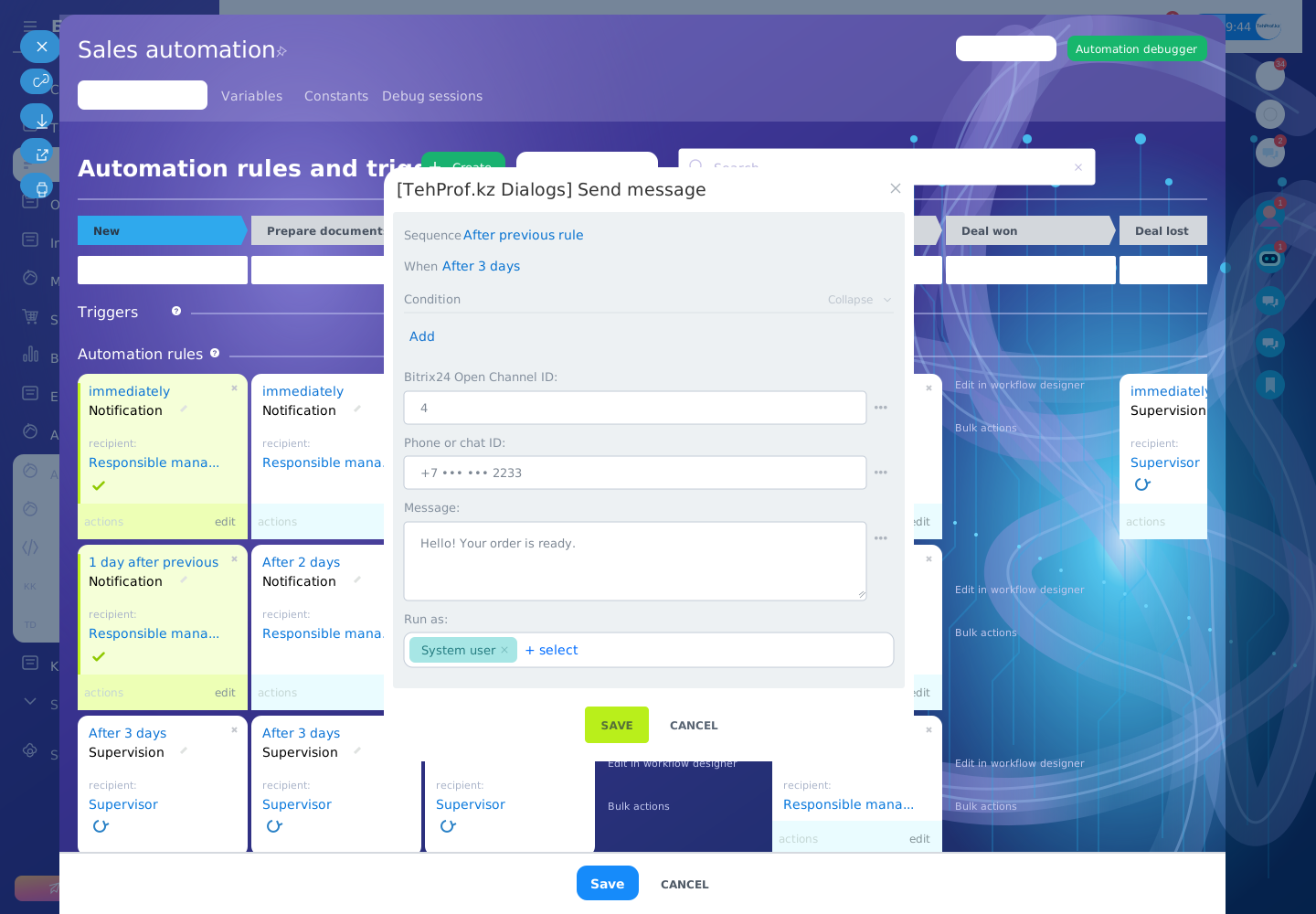
| «Dialogs: отправить сообщение» (send message) | Sends plain text to a phone or chat ID; can start a WhatsApp Web conversation | Open Line ID, phone or chat ID, text |
| «Dialogs: закрыть диалог Открытой линии» (close the Open Line conversation) | Finishes the linked request | The intended Open Line ID |
Get the Open Line ID from its settings in Contact Center: it is the number after LINE= in the page address. It differs from the Dialogs channel ID.
- Save order_ready with the body Hello, {{1}}! Order {{2}} is ready. For official WhatsApp, wait for Meta approval.
- In the template action, enter order_ready and the intended language. Map {{1}} to the customer-name field and {{2}} to the order-number field.
- Run the action on one record with exactly one linked chat on the intended Open Line. Check the automation history and the message received on the phone. Test the close action separately on one active enquiry; after it runs, the enquiry should finish in the Open Line.
Official WhatsApp allows plain text only within 24 hours of the customer’s latest message. Start first contact with an approved template in Dialogs. If the template action reports a missing or ambiguous chat, check the conversation’s link to the record and Open Line.
For WhatsApp Web, you can also use Bitrix24’s Send SMS action if your Dialogs line is available as a sender. Test one send before enabling the action for all deals.
If a Dialogs action is missing from the automation list, an administrator checks that the app is installed on the intended portal. If it is installed, give support the portal address and missing action name to check its registration.