amoCRM: messaging in amo chats, calls, tasks and Salesbot
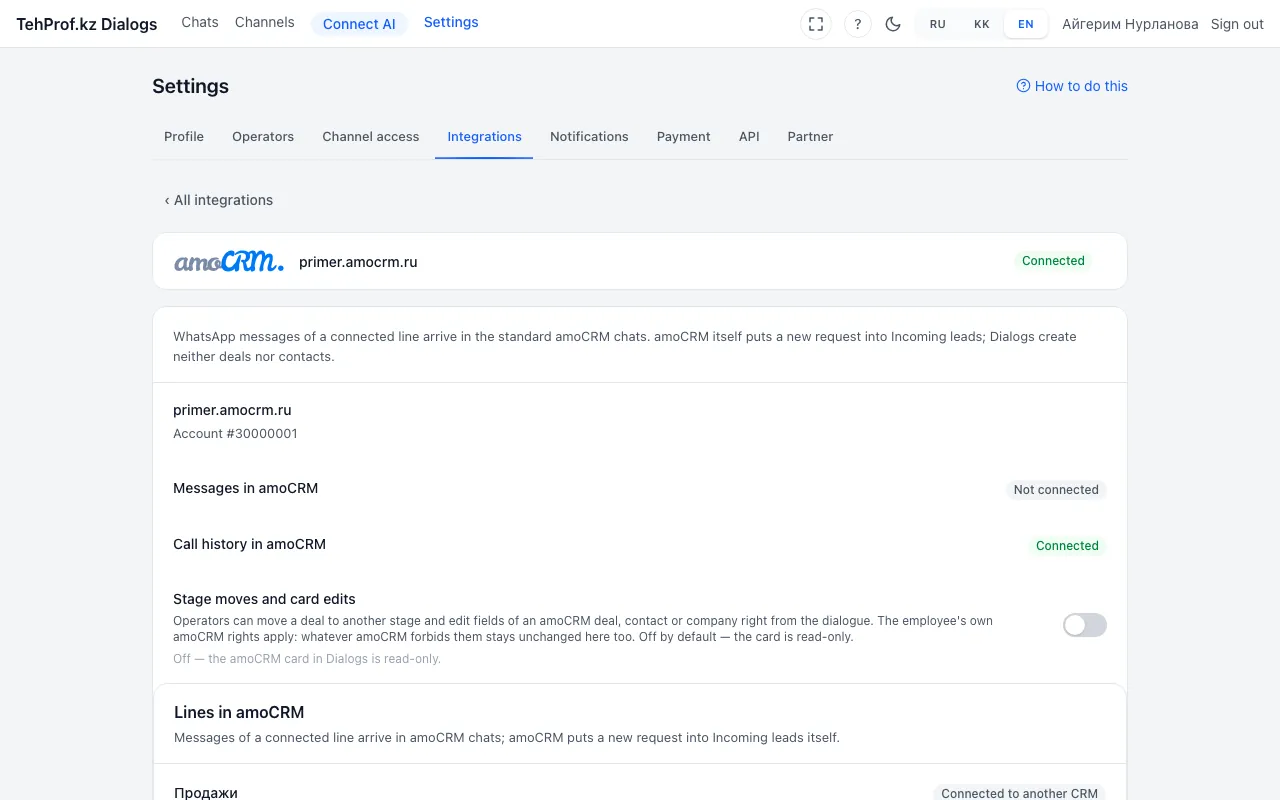
The help used to say native amoCRM chats are unsupported. That was wrong: a line that an administrator has directed to amoCRM writes into the standard chats, and access to dialogues can be tied to the person responsible in amoCRM. A call lands in the card with its recording and transcript, and after a missed call or an unanswered chat a call task can appear. Calls are described in A call in the deal and the CRM feed, WhatsApp templates in Official templates.
- Open “Settings → Integrations → amoCRM” and press “Connect to amoCRM” next to the line you need in the “Lines in amoCRM” block.
- Check that “Messages in amoCRM” and “Call history in amoCRM” read “Connected”. If not, press “Connect to amoCRM” next to the line again: the chat connection is retried.
- Optional: turn on “Dialogue access by amoCRM responsible” and “Stage moves and card edits”.
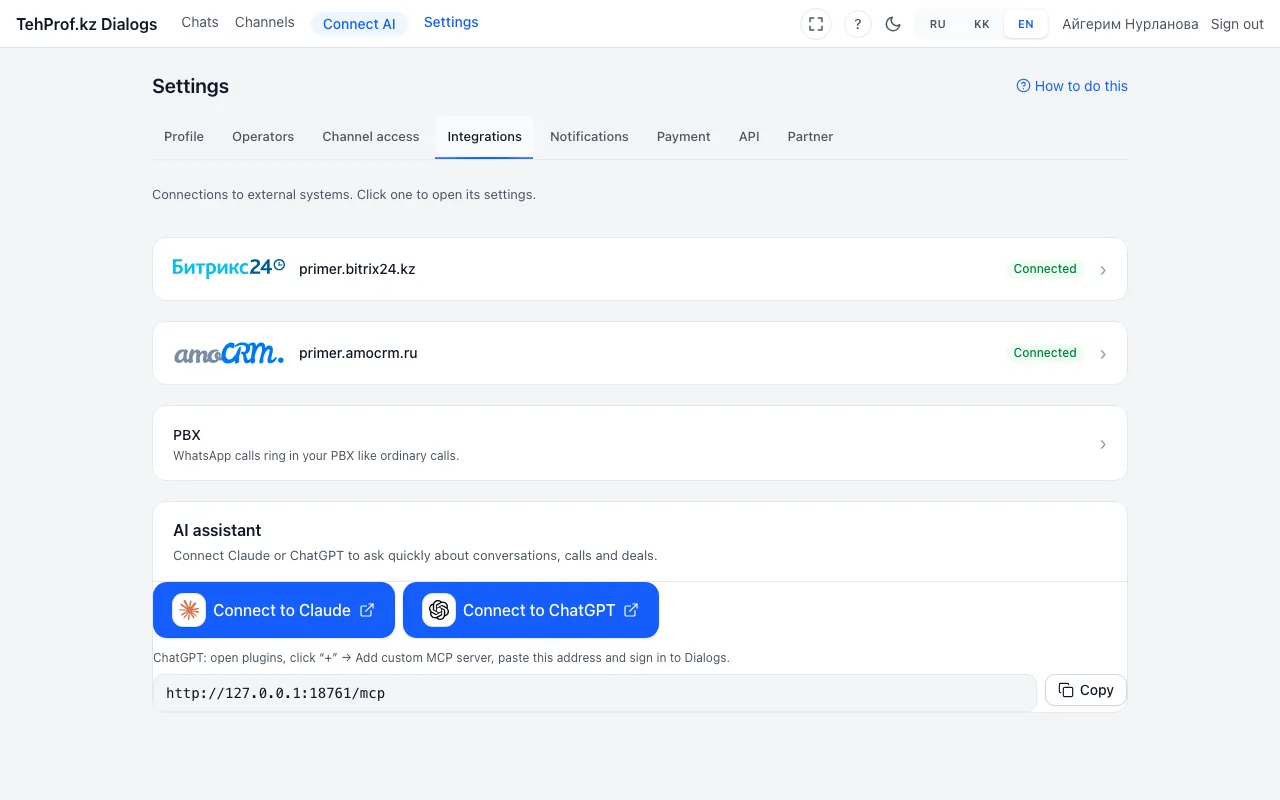
Dialogs → Settings → Integrations → amoCRM
Read more in the article Connect WhatsApp to amoCRM: chats, calls, tasks and the client card.