Open dialogs.tehprof.kz in a regular browser — on a computer or a phone. Besides the code, the same window has “Sign in with a password”, “Google” and “Яндекс”.
Step 1. Open the page and press “Sign in”
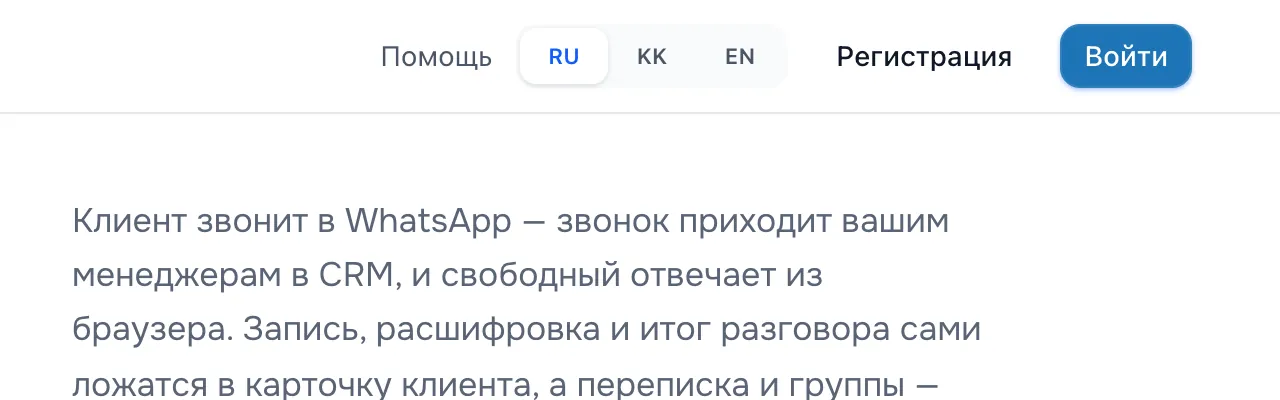
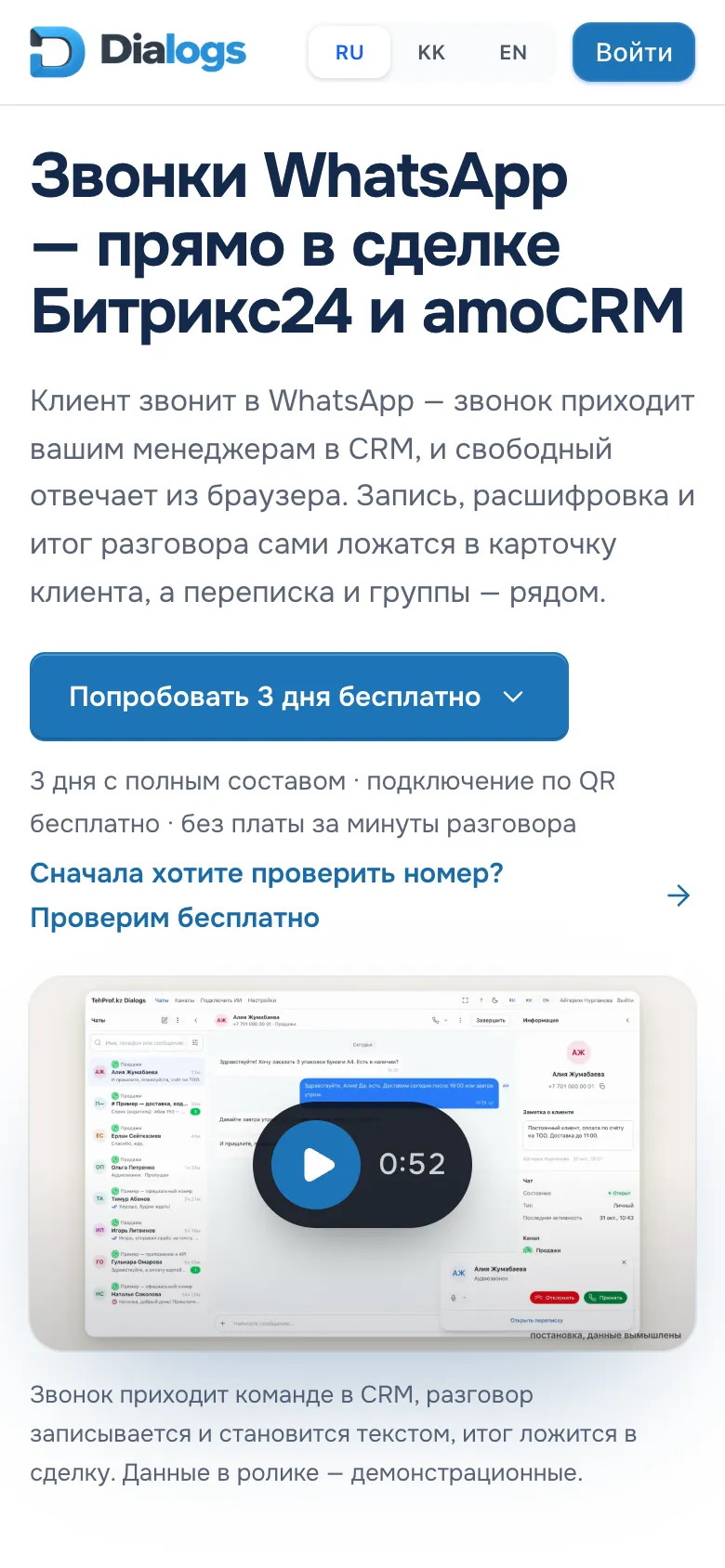
The “Sign in” button is in the top right corner of the home page, on a phone it is also at the top right.
Working from a phone? Put the Dialogs icon on the screen: how to add the icon.
The Dialogs home page on a computer, the “Sign in” button in the top right corner
The “Sign in” button
The Dialogs home page on a phone, the “Sign in” button at the top right
The “Sign in” button
Step 2. Enter your email or phone
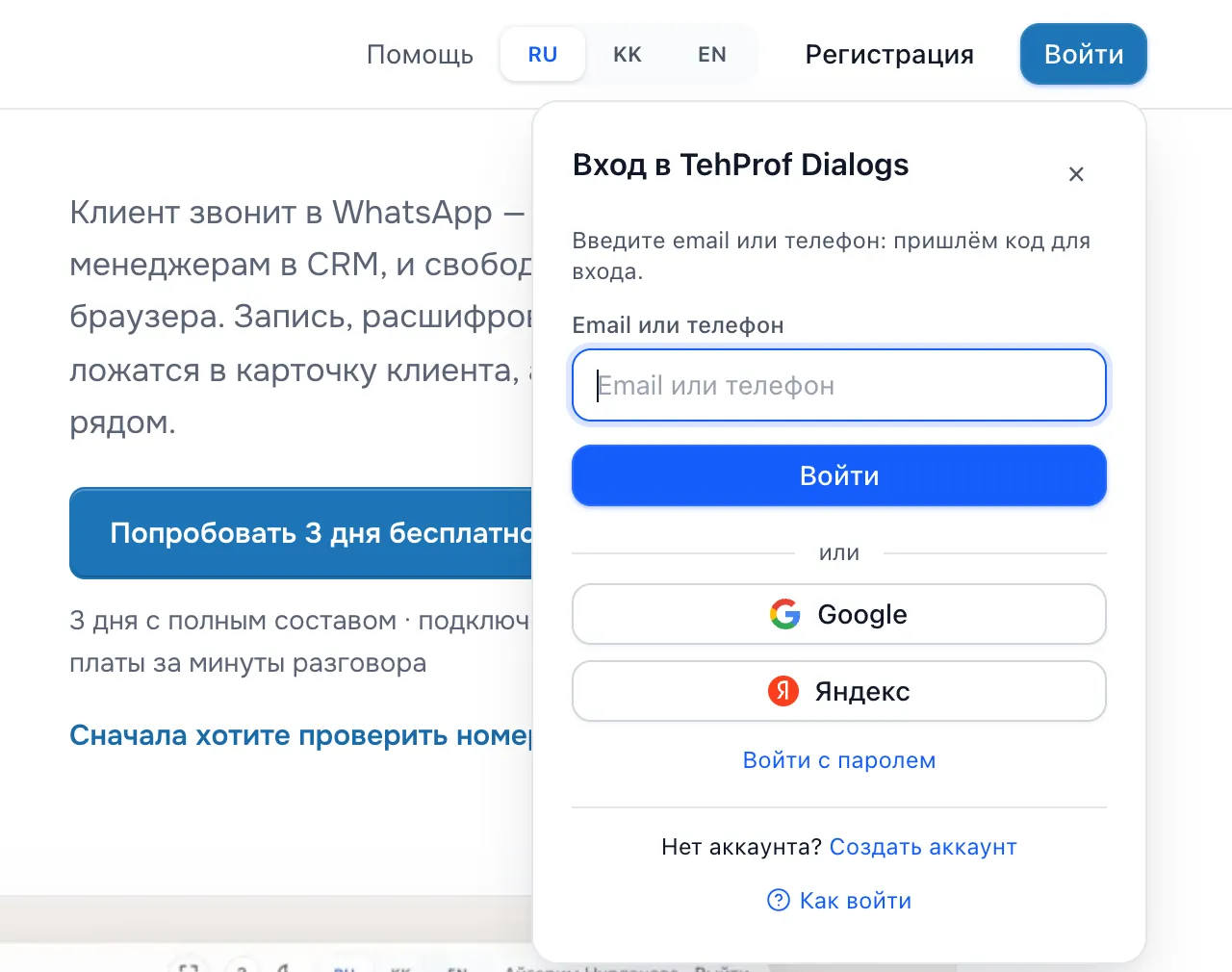
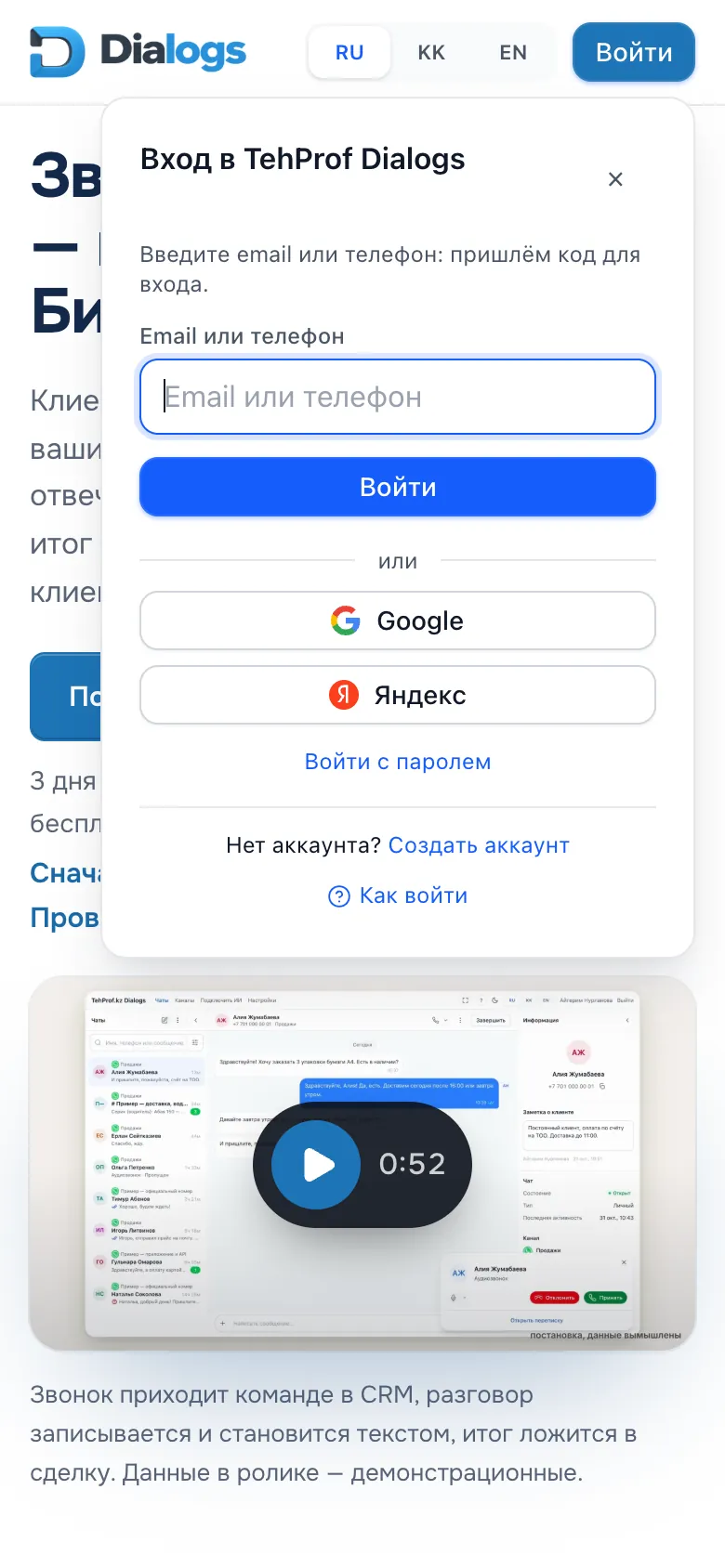
In the “Sign in to TehProf Dialogs” window enter the address in the “Email or phone” field. The hint under the field tells where the code goes: “We will email you a code” or “We will send a code to WhatsApp”.
Press “Sign in” under the field. If the button says “Get a code”, press that: it is the same action.
The “Sign in to TehProf Dialogs” window on a computer: the “Email or phone” field and the “Sign in” button
The “Email or phone” field
The “Sign in” button
The “Sign in to TehProf Dialogs” window on a phone: the “Email or phone” field and the “Sign in” button
The “Email or phone” field
The “Sign in” button
Step 3. Enter the code
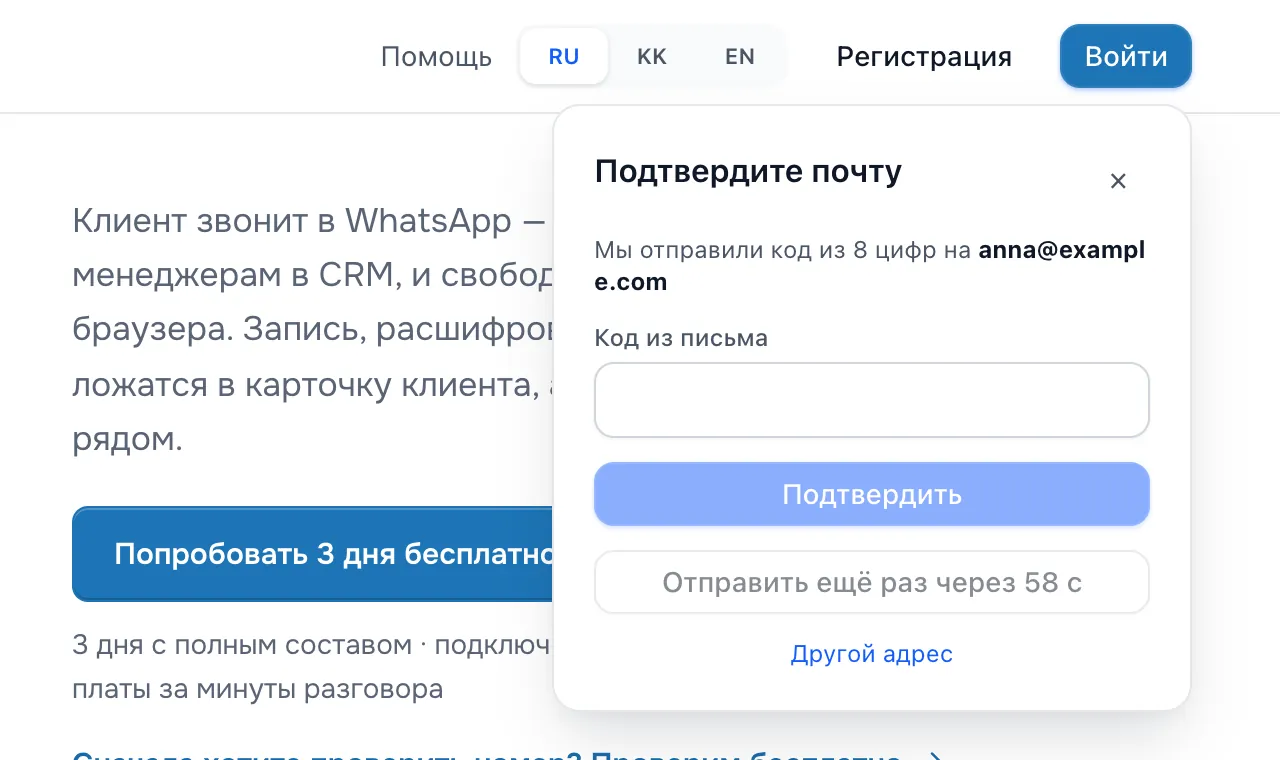
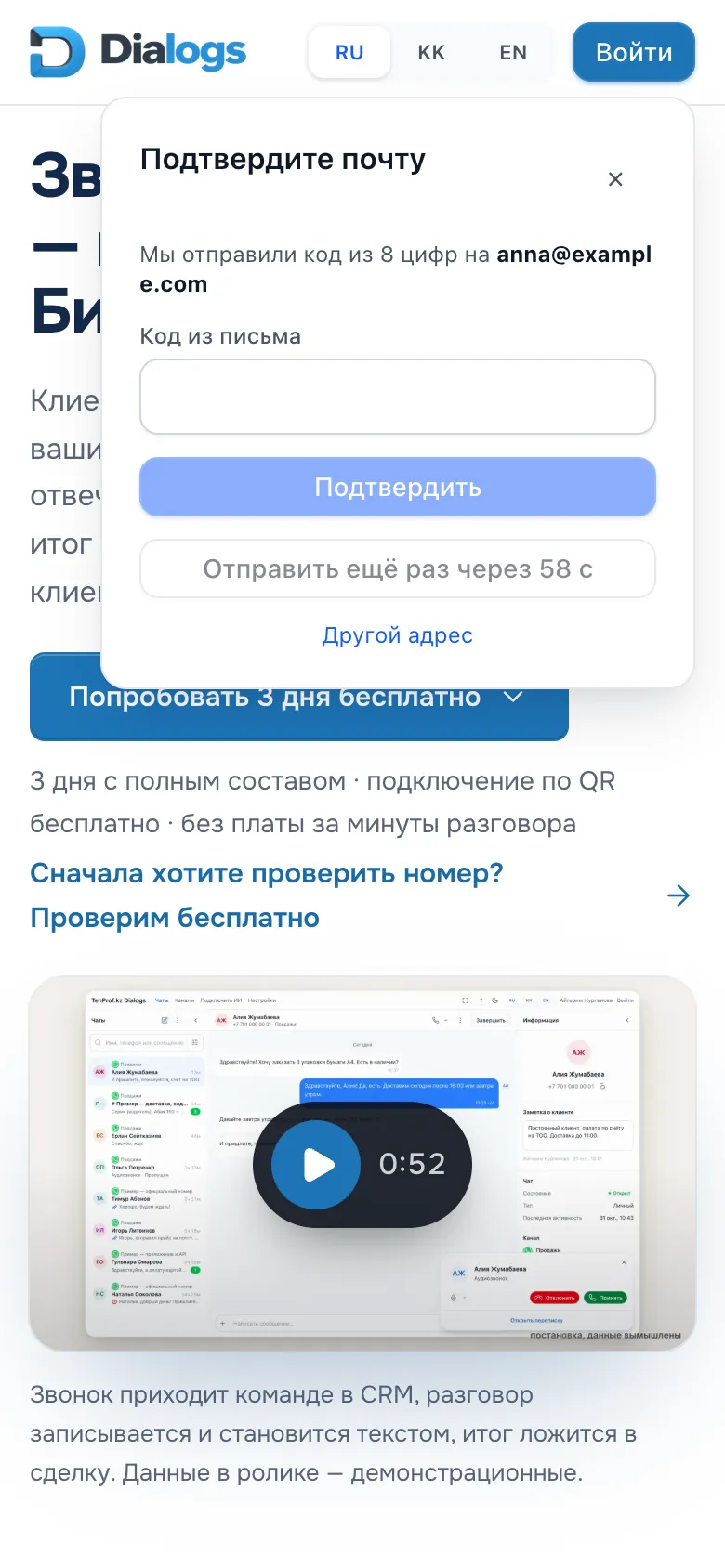
For an email, open the letter and enter the 8 digits in the “Code from the email” field, then press “Confirm”.
For a phone, the code arrives in WhatsApp or Telegram: enter it in the “Code from the message” field.
The code did not arrive or does not fit — what to do.
The “Confirm your email” window on a computer: the “Code from the email” field and the “Confirm” button
The “Code from the email” field
The “Confirm” button
The “Confirm your email” window on a phone: the “Code from the email” field and the “Confirm” button
The “Code from the email” field
The “Confirm” button
Step 4. Choose a company or give your name
If your address is listed in several companies, “Choose a company” appears. Choose yours: the address is then tied to it only.
If there is no cabinet with your address, enter your name: the cabinet is created once the address is confirmed.
Done when your Dialogs cabinet opens. Next time sign in the same way: “Sign in” → address → code.
Your manager invited you
The manager presses “Confirm” next to your email in “Operators”. You get a letter “Invitation to … — Dialogs” (or a WhatsApp message if you were invited by number) with a link.
Step 1. Open the link and join the team
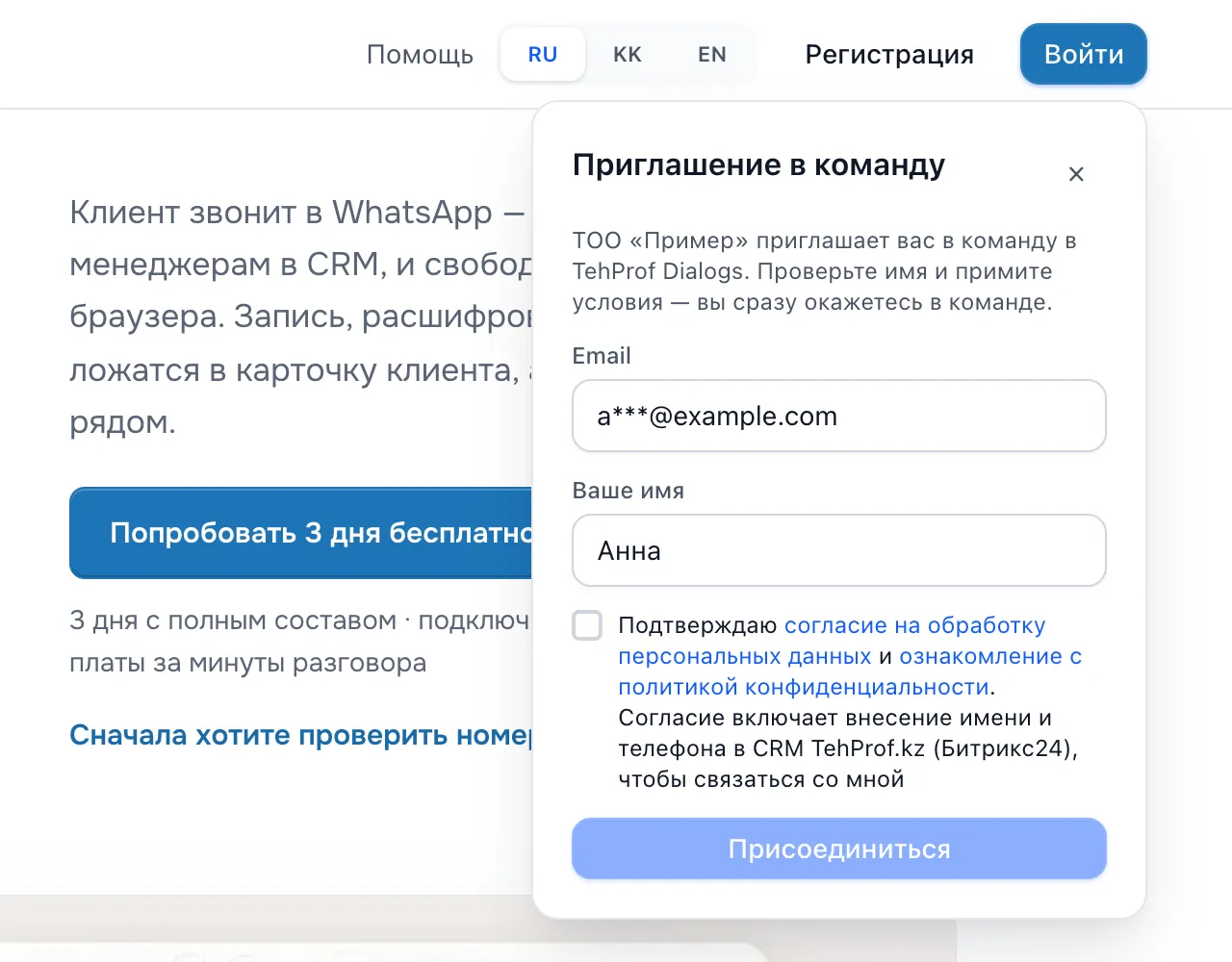
Open the link from the letter or message. The “Team invitation” window opens with the company name.
Check the name in the “Your name” field.
Tick the consent and press “Join the team”.
The “Team invitation” window (in Russian): the address, the name field, the consent and the join button
The name field
The consent to data processing
The join button
Done when you are in the cabinet and the address in your profile is marked “Confirmed”. After that sign in by code, as described above.
For the manager: how to send the invitation
Open Settings → Operators and find the employee.
In the “Email” row, next to the address marked “not confirmed”, press “Confirm”.
If the button does not press, the reason is written next to it: “an invitation has already been sent”, “the employee already signs in on their own”, “the employee is disabled” or “this address is already confirmed for another employee”.
Confirm or change an address in the profile
Open Settings → Profile. Email and phone stand in the “Profile” card: an unconfirmed address has a “Confirm” button, a confirmed one has the “Change” pencil. The same works in the CRM window.
To confirm an address, press “Confirm”, then “Get a code”, enter the code in the “Code” field and press “Confirm”.
To change an address, press the “Change” pencil, enter the new address and press “Get a code”. The code goes to the new address itself — enter it and press “Confirm”.
Once the new email is confirmed it replaces the old one; the old address stops being a way to sign in.
Done when the message “Address confirmed” appears and “Confirmed” stands next to the address.
The code did not arrive, expired or does not fit
Check the Spam folder and the address. You can ask for a new code with “Send the code again”: it becomes available after a minute. A wrong code can be entered 5 times, then you need a new one. Too frequent requests are paused: wait a minute and try again. If you typed a phone and see “Phone sign-in is not available right now. Sign in by email.”, sending codes to phones is not set up in the service: the field accepts only email. “The code could not be delivered to WhatsApp or Telegram” means the code did not reach that number: check the number or sign in by email.
It says the address is tied to another card
This address is already confirmed for another account, and the screen says: “This address is tied to another card. Sign in with it.” Sign in the way that card has. A confirmed address of someone else cannot be taken, and no code to sign in to someone else’s card is sent to it.
Why am I asked to choose a company?
One address is listed in several companies. Dialogs does not guess which is yours: choose yours, and the address will be tied to that one only.
The address says “Not confirmed”
Such an address opens nothing yet. Open Settings → Profile: in the “Profile” card press “Confirm” next to the address and enter the code. Details — how to confirm or change an address. For a new address press “Add email” or “Add phone”. If your last sign-in was long ago, Dialogs asks you to sign in again.
The code worked, but Dialogs asks “Is this your card?”
This happens when the company has already created an employee card with this address or number — for example from Bitrix24 or amoCRM. If this workplace is yours, press “Join”: it moves to your account, and the company can reply in your name only in its own CRM window. If the card is not yours, press “This is not me, do not join” — nothing changes, and the address stays confirmed for you.
I was signed out on my other devices
Confirming an address closes everything that was open on this card before the code: your other sign-ins on other devices and codes and sign-in links not yet used. This browser stays. Just sign in again on the device you need.
Install TehProf Dialogs in your CRM
Installing the app and connecting WhatsApp by QR code are free. The line subscription is billed separately.