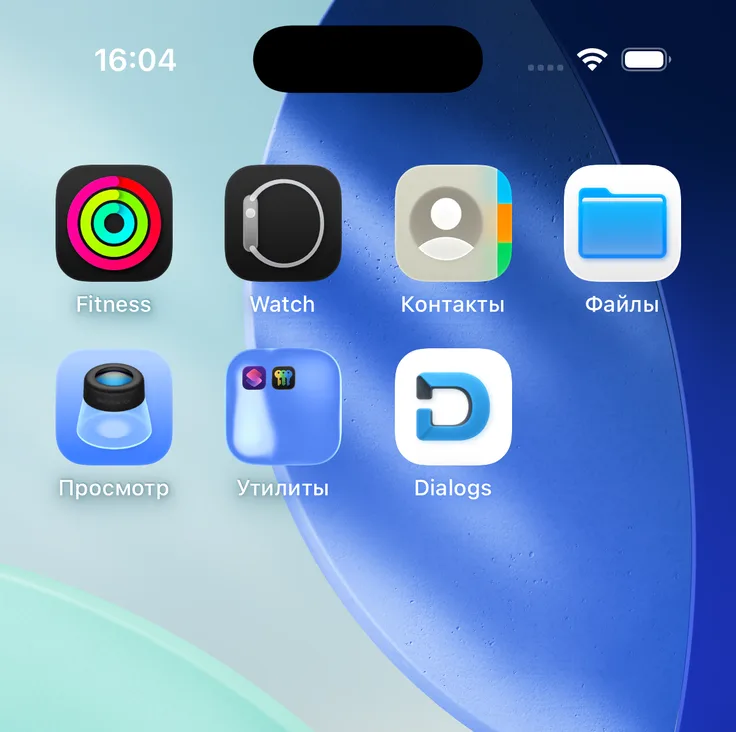
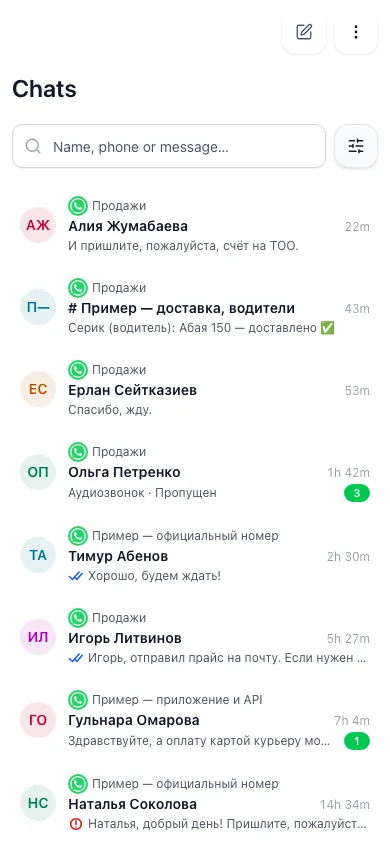
Install Dialogs on your phone as an app Briefly TehProf Dialogs installs on the phone straight from the browser — nothing to download from an app store. iPhone: Safari → Share → Add to Home Screen. Android: Chrome → three dots → Add to Home screen → Install. The icon opens Dialogs in its own window: no address bar, with the section menu at the bottom. Notifications about messages and calls are turned on in Dialogs itself: Settings → Notifications → Notifications on this device. Icon: The Dialogs icon on the iPhone Home Screen among other apps The Dialogs icon App: Dialogs opened from the icon: full screen, section menu at the bottom Good to know. Open dialogs.tehprof.kz in Safari (iPhone) or Chrome (Android). The in-app browser of WhatsApp, Telegram or Instagram cannot install it — open the link in a regular browser. You can sign in before or after installing: how to sign in to Dialogs .
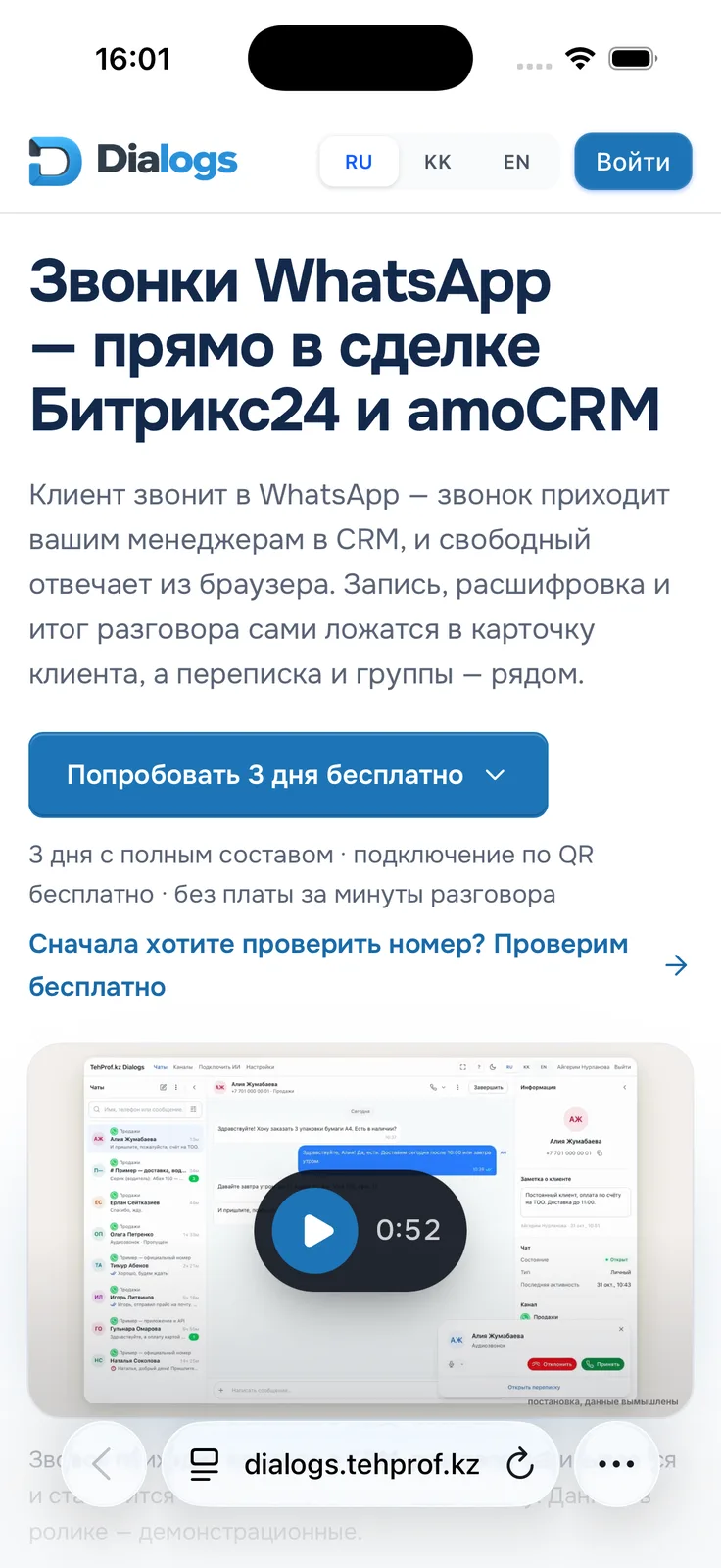
iPhone and iPad: Safari Step 1. Tap the three-dots button to the right of the address at the bottom of the screen. Some iOS versions show the Share button (a square with an arrow) right at the bottom — then go to step 3. The screens below are in Russian.
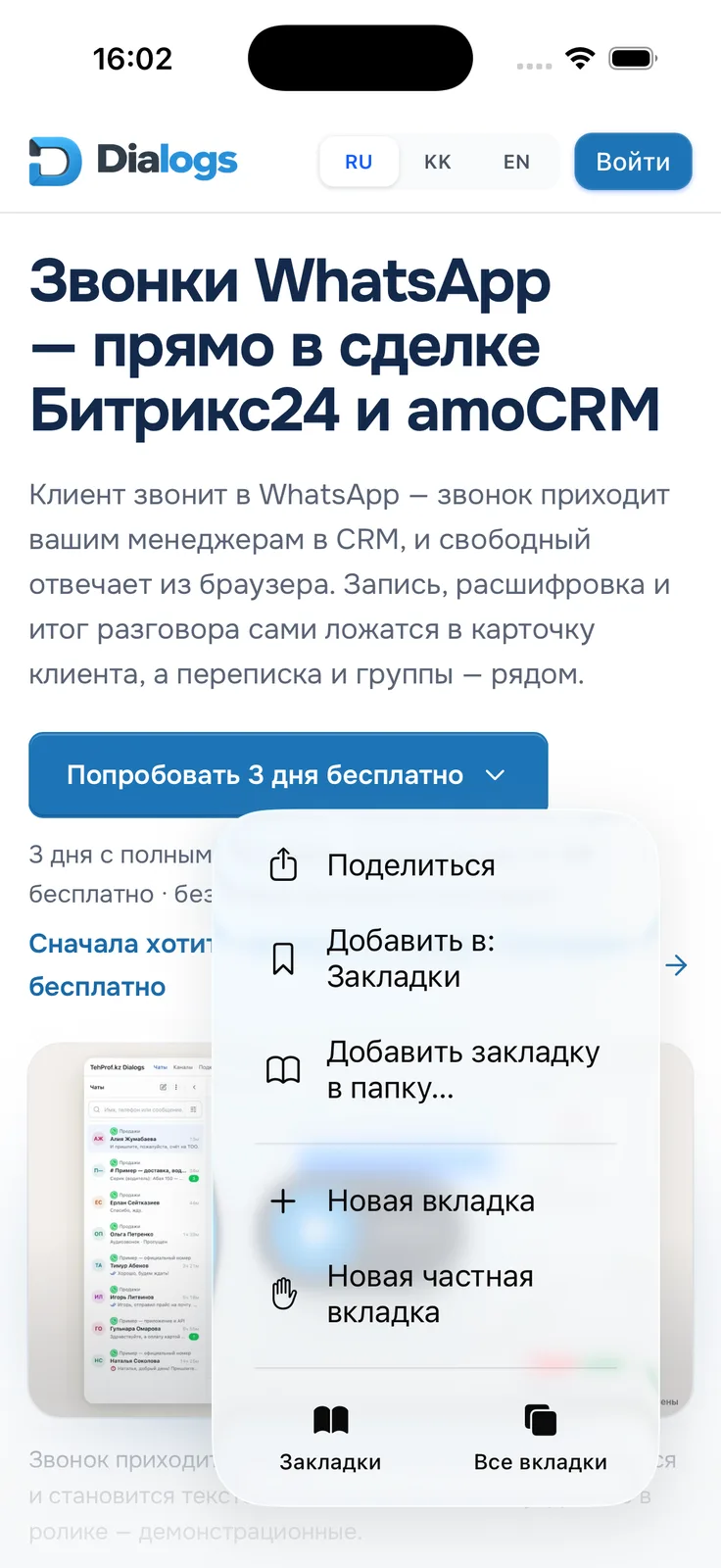
The Dialogs site in Safari, the address and the three-dots button at the bottom The three-dots button Step 2. In the menu, tap Share («Поделиться»).
The Safari menu, the first item is Share Share Step 3. An actions panel appears at the bottom. Tap Show More («Показать больше») to open the full list.
The Share panel with the Dialogs site card and the Show More button Show More Step 4. Tap Add to Home Screen («Добавить на экран «Домой»»). If it is missing, tap Edit Actions at the bottom of the list and add it.
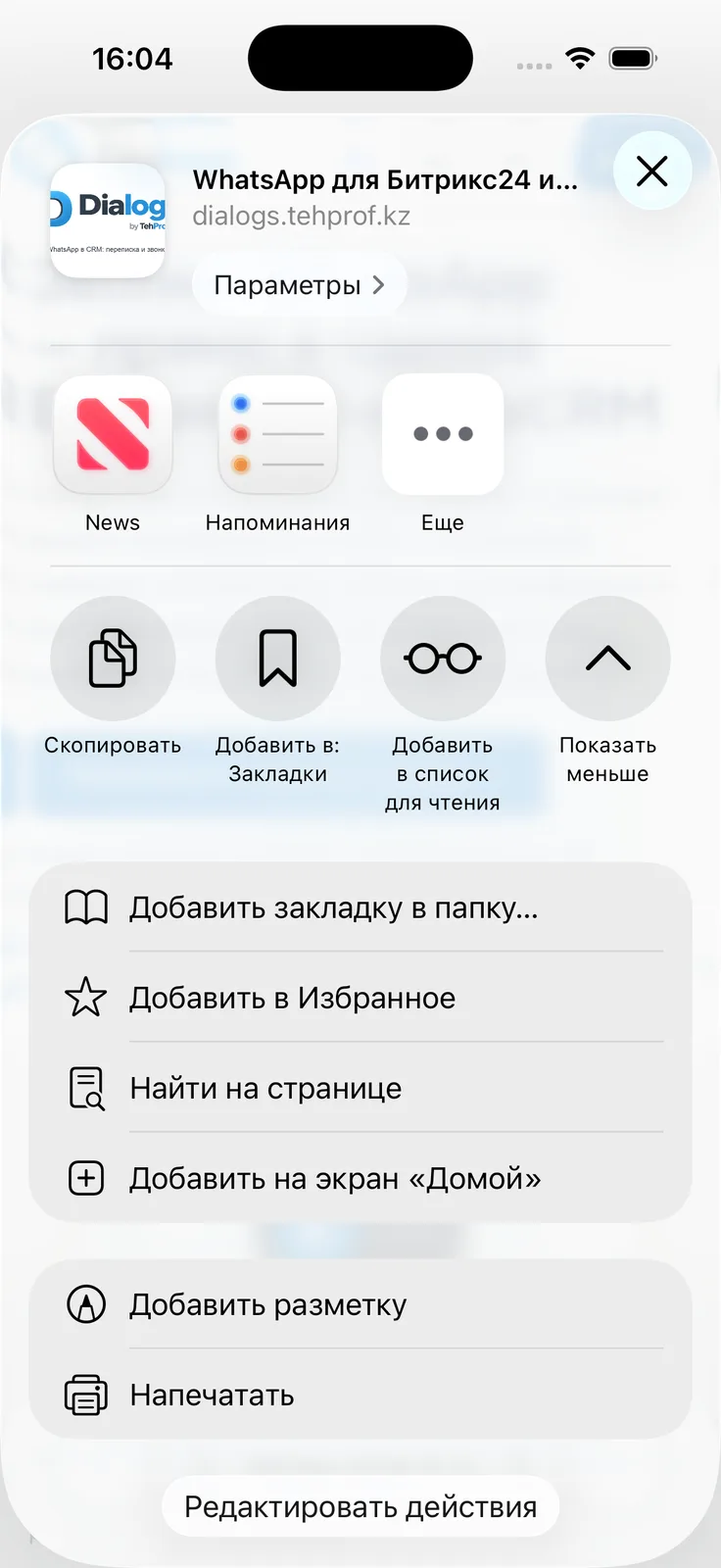
The full list of actions with Add to Home Screen Add to Home Screen Step 5. Check the icon and the name, keep Open as Web App («Открыть как веб-приложение») on and tap Add («Добавить»).
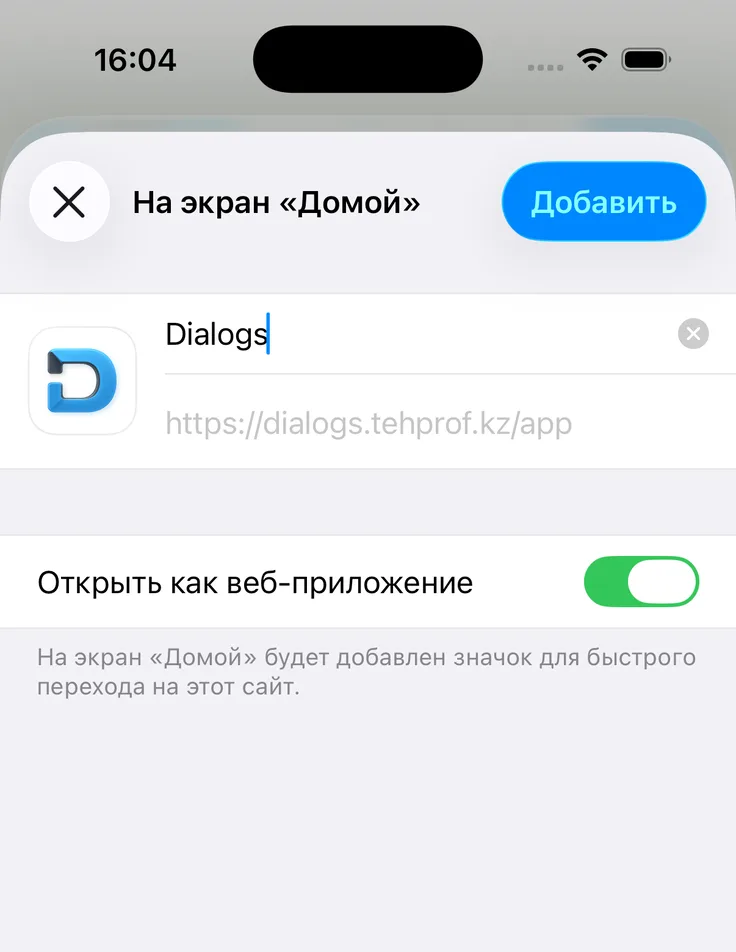
The Add to Home Screen window: the Dialogs icon, the name, the Open as Web App switch and the Add button Icon and name — this is how they will look on the screen Open as Web App — keep it on Add The Dialogs icon appears on the Home Screen — as in the first picture of this article.
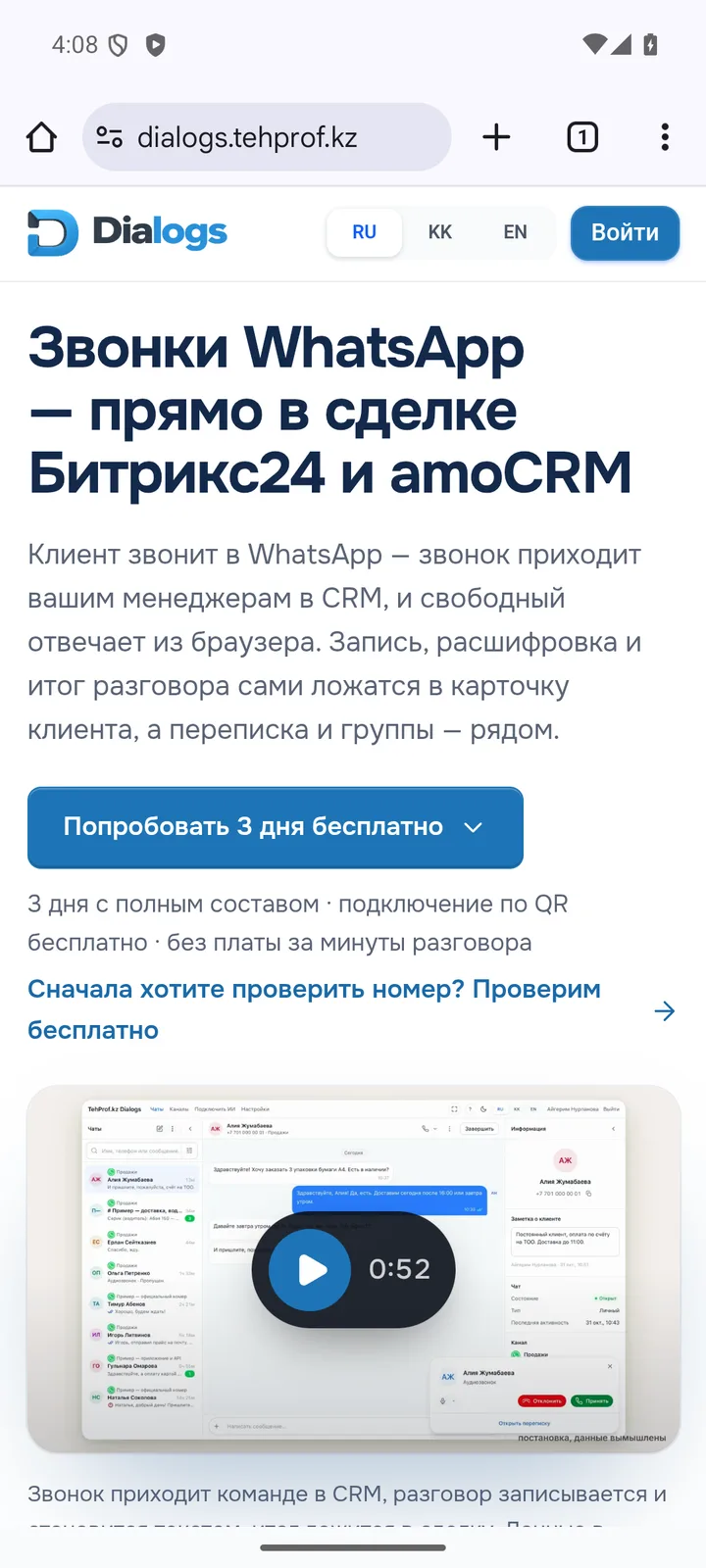
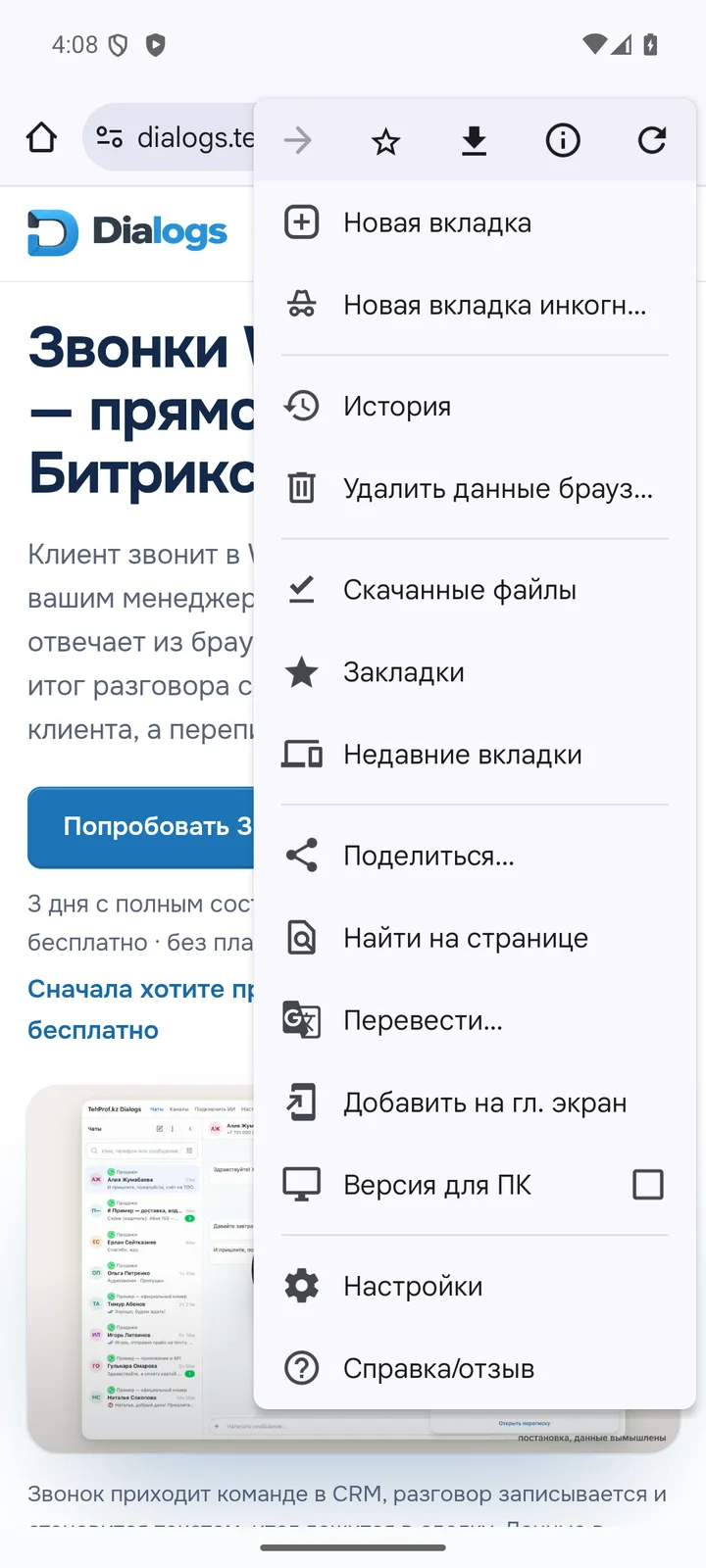
Android: Chrome Step 1. Tap the three dots to the right of the address bar. The screens below are in Russian.
The Dialogs site in Chrome, the three-dots button to the right of the address Three dots — the Chrome menu Step 2. Choose Add to Home screen («Добавить на гл. экран»). Some Chrome versions call it Install app.
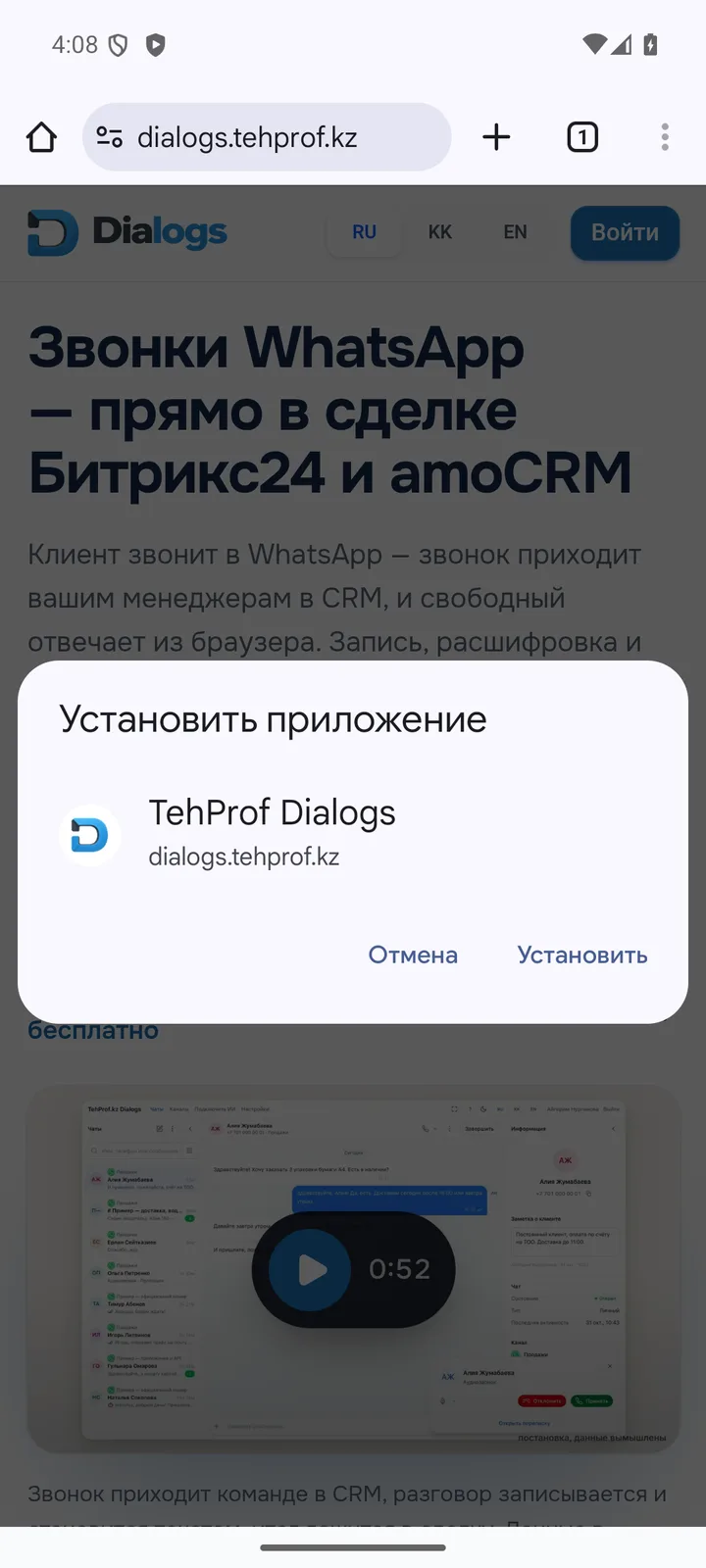
The Chrome menu with Add to Home screen Add to Home screen Step 3. In the Install app window, tap Install («Установить»).
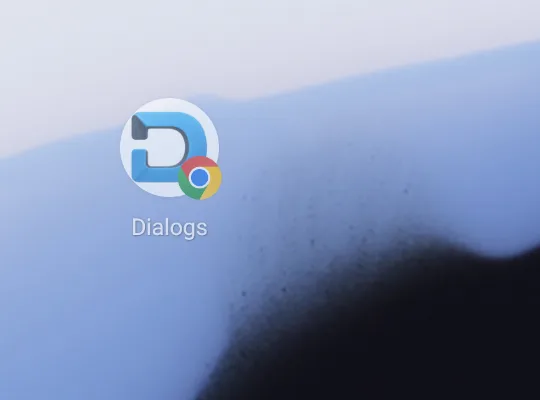
The Chrome Install app window with the TehProf Dialogs icon Install Step 4. If the phone asks where to place the icon, tap Add. The Dialogs icon appears on the Home screen.
The Dialogs icon on the Android Home screen The Dialogs icon Tip. The first time you open Dialogs from the icon it may ask you to sign in again: on iPhone the Home Screen app keeps its sign-in separately from Safari.
Important. A grey letter «T» instead of the icon? That shortcut was added before the update: the phone keeps the icon it saw when the shortcut was added. Remove the old shortcut and add Dialogs again with the steps above.
Notifications and calls For new client messages and incoming calls to show on the phone screen while Dialogs is in the background, turn notifications on in Dialogs itself. You do it once on each phone.
iPhone and iPad (iOS 16.4 or later) Open Dialogs from its Home Screen icon. Notifications cannot be turned on in Safari — only in the installed app. Open Settings → Notifications and turn on Notifications on this device. The iPhone asks for permission — tap Allow («Разрешить»). If there was no prompt or nothing arrives, check the iPhone Settings: Notifications → Dialogs. Android: Chrome Open Dialogs from its Home screen icon. Open Settings → Notifications and turn on Notifications on this device. The phone asks for permission — tap Allow. If you blocked notifications before, allow them for Chrome and for Dialogs in the phone settings. Good to know. An incoming call arrives as an “Incoming call” notification while you are on shift and Dialogs is open or was just put in the background: tap the notification and answer in Dialogs. It is a notification, not a phone-style call: the screen does not light up with a full-screen ring. When Dialogs is closed or the phone has put it to sleep (iPhone almost at once, Android usually later), the call goes to other employees on shift. Not to miss calls, keep Dialogs open on a computer or on the phone screen.
Tip. In Do Not Disturb or Focus the phone does not show notifications. Add Dialogs to the allowed apps if you want to see them.
Related articles Getting started What TehProf Dialogs does, the first step, the trial and payment
What TehProf Dialogs is: WhatsApp calls, groups and chats in your CRM — TehProf Dialogs connects WhatsApp to Bitrix24 and amoCRM: chats, calls with recording and transcripts, groups, three ways to connect and prices in tenge.Connect a number and start replying — How to connect a WhatsApp number to Bitrix24 or amoCRM: find your case in the table — QR, the official API or Coexistence — and open the matching guide.WhatsApp Web and official WhatsApp — How WhatsApp Web by QR differs from the official WhatsApp Business API for a CRM: the phone app, templates, groups and calls. How to choose a method.Trial, payment and the invoice for a line — How the 3-day trial works, how to issue an invoice for a WhatsApp line and pay it by transfer, how to renew the term and what happens when it ends.Connect WhatsApp By QR code, a new number through Meta, a number from your phone or another provider
Connect WhatsApp Web by QR code — WhatsApp Web by QR connects your number to Bitrix24 and amoCRM. The link is unofficial; the official API avoids that, but complaints can still limit a number.Connect a new official number — Connect a new number to the official WhatsApp Business API from Meta and your CRM: the path for a number not yet in WhatsApp, without the QR restriction risk.Keep WhatsApp Business on the phone — Coexistence connects the official WhatsApp Business API to a number that stays in the WhatsApp Business app: chats in the CRM, replies from the phone as well.Move from another official provider — The number is registered with another official WhatsApp API provider: what to do when Meta says it is taken, and how to move it to TehProf Dialogs.The Facebook window: connect a number step by step — What to prepare and what to press in the Meta window when connecting official WhatsApp: sign-in, terms, number, code, business portfolio and line check.Check the company and number in Meta — Meta reviews the company, the number’s display name and Official Business Account (OBA) status separately: what to check for the official WhatsApp API.Meta terms in plain words — Business portfolio, WABA, display name, business verification, the 24-hour window, templates, limits, Coexistence and OBA: official WhatsApp API terms.Bitrix24 Open Channels, WhatsApp campaigns, the «Unread» mark, robots and calls in the deal
amoCRM Connecting, chats, calls and tasks in the client card
Chatting with clients Signing in, replying, the 24-hour window, saved replies and templates, notifications
The TehProf Dialogs workspace — The conversation list is on the left, the message thread in the centre and customer details on the right. Select a chat to reply from the company number.Sign in to TehProf Dialogs — Sign in by phone with a code in WhatsApp or Telegram, by an email link, with a password, Google or Yandex; from your CRM; and what to do when sign-in fails.Reply and start a conversation — How to reply to a customer on WhatsApp in TehProf Dialogs and start a new chat from the company number; if a message is not delivered, check the failed send.When an official template is required — On official WhatsApp, you have 24 hours after the customer’s latest message to reply in plain text. Each new customer message restarts this window.Save a reply for WhatsApp Web — On a WhatsApp Web line a template is a saved team reply: it is available as soon as you save it, without Meta review, and variables change the customer name.Create and send an official template — How to create and send an official WhatsApp template: all numbers in one WhatsApp Business account share templates; stats and quality are in WhatsApp Manager.Personal and shared templates in any chat: create, find, send — Personal and shared WhatsApp templates work in a chat on any line: create one in a single step, find it by search, send it, and who may change shared ones.Meta templates in a web-line chat and “Save as template” — How to send a Meta template from a WhatsApp Web line chat, what happens to variables and buttons, and how to save a good message as a template.Find a template fast: favorites, recents and “/” in the message field — How to find a WhatsApp template fast: favorites and recents on top, the “Meta” switch, search, filters, “/” in the message field and the admin’s selection.Notifications: new messages and a disconnected line — When TehProf Dialogs shows a new-message notification and a sound, how to get an alert when a WhatsApp line disconnects, and what to do if nothing arrives.Choose the language and theme — How to switch the TehProf Dialogs interface language and the light or dark theme: the controls in the header, your choice is saved for your account.Install Dialogs on your phone as an app — How to add Dialogs to your phone home screen (Safari on iPhone, Chrome on Android) and turn on notifications about messages and calls.WhatsApp calls Taking calls, who gets them and how to call a client
Set up incoming WhatsApp calls — How to set up incoming WhatsApp calls in Bitrix24 and amoCRM: the call rings for managers, and the recording and transcript stay in the client card.WhatsApp call route: responsible employee, staff, departments and forwarding step by step — How a WhatsApp call goes through steps 1-2-3: first to the responsible employee and staff in TehProf Dialogs, then to the WhatsApp of a department.Call a customer: recent calls, keypad and digits during a call — How to call a customer on WhatsApp from TehProf Dialogs: recent and missed calls, the keypad, the default line and digits during a call.The «Calls only» product: a WhatsApp dialer without messaging — The «Calls only» plan in TehProf Dialogs: one WhatsApp dialer instead of chats, call recording in Bitrix24 and amoCRM, who it suits and how it differs.How much «Calls only» costs per month and what Meta charges for — The price of «Calls only»: 15 000 ₸ a month on a QR line and an official one, the surcharge for calls with messaging, and Meta fees for outgoing calls.Connect our line for calls: ordinary WhatsApp by QR code — How to connect a «Calls only» line on ordinary WhatsApp by QR code: open «Channels», link the phone and test a call. WhatsApp may impose restrictions.Connect an official WhatsApp number for calls: Meta requirements — What an official WhatsApp number needs for calls: a messaging limit of 2000, a payment method, no coexistence mode, the call icon and Meta’s rules.An incoming call in the browser: accept, reject, microphone — How to take an incoming WhatsApp call in TehProf Dialogs: the call card, «Accept» and «Reject», microphone access and what to do if nothing is heard.Call a customer: keypad, recents and choosing the line — How to call from the «Calls» section: dial on the «Keypad», call back from «Recents», pick the line under «Calling from» and make one the default.Customer permission to call: how to ask and how long it lasts — How to get a customer’s permission to call from an official WhatsApp number: the «Call permission request» window, «Send request», Meta’s terms and limits.The call journal: recents, missed and the result of every call — Where to see call history in TehProf Dialogs: the «Recents», «All» and «Missed» tabs, the result of a call and how to call a missed number back quickly.WhatsApp calls in amoCRM and Bitrix24 with «Calls only» — How «Calls only» calls work in amoCRM and Bitrix24: the dialer in the CRM panel, the call recording in the client card or deal, and what it takes.Calls only: questions, Meta limits and what is not supported — Answers about «Calls only»: the 100 calls a day limit, the call icon delay of up to 7 days, countries without outgoing calls, and adding messaging.Team Access for staff and several managers working without double replies
Give employees access — How to give employees access to WhatsApp in Bitrix24: app access, Open Line permissions, a place in the queue and call recipients in Bitrix24 telephony.How sign-in to Dialogs works and what gets confirmed — Why sign-in uses a code, what “address confirmed” means, who can hold an address and what to do if you suspect someone else signed in.Sign in to the Dialogs cabinet with a code — Sign in to TehProf Dialogs with a code by email or phone: steps, and what to do if the code did not arrive, the address is taken or you must choose a company.Signing in from Bitrix24: what you confirm and why — How an employee opens Dialogs from Bitrix24, why an address from the CRM does not open the cabinet by itself, and how to confirm an email or phone.Signing in from amoCRM: what you confirm and why — How an employee opens Dialogs from amoCRM, why an address from the CRM does not open the cabinet by itself, and how to confirm an email or phone.Automatic check of employee access — How Dialogs compares your team with the CRM employee list, when it closes access by itself and why a mass disappearance is left to the administrator.Accepting documents at sign-in: who accepts what — When TehProf Dialogs asks you to accept documents at sign-in, how the single tick works, and how an owner or administrator differs from an ordinary employee.Two CRMs at once and switching between Bitrix24 and amoCRM — How to connect Bitrix24 and amoCRM to one company at the same time, what “Primary” and “Secondary” mean, and how to move WhatsApp lines between the programs.Coordinate the team’s replies — How a team replies to WhatsApp customers without duplicates: choose your main workspace for replying — TehProf Dialogs or a Bitrix24 Open Line.AI assistant Claude, ChatGPT and Cursor help the operator with replies
If something does not work The line dropped, a message failed, an error while connecting through Facebook
When WhatsApp does not work: line, messages, calls, templates and sign-in — Common TehProf Dialogs problems: the line went offline, messages do not reach Bitrix24 or amoCRM, a call does not ring, a template is not sent, sign-in fails.Check a failed send — If a message appears in TehProf Dialogs but not in Bitrix24, check the Open Line, the queue and employee access: how to check a failed send.Problems connecting through Facebook (Meta) — The Facebook window did not open, no business portfolio, number already registered, no code, display name rejected, templates not sent: what to do.For developers: Gateway API Sending messages and templates from your system, webhooks, limits
Gateway API — connect your own service — One WhatsApp API in TehProf Dialogs: receive messages on your own webhook and send replies with a single POST from a bot, an n8n flow or your own service.Sending messages — Send a message. POST /messages/ — text, a file or a template. A file may carry text as its caption; a template does not combine with text or a file.Message templates — Create an official WhatsApp template through the Gateway API: POST /templates/, a lowercase name and a required body_text; the verdict from Meta comes later.Webhooks — inbound to you — How to register a Gateway API webhook: PUT /webhook/ with your https URL and streams, the hmac_secret that signs deliveries, and replacing a subscription.Catch up on what you missed — Gateway API subscriptions: GET /subscriptions/ shows the state and watermark of every line, so you can catch up on WhatsApp events your webhook missed.Errors, n8n and limits — Gateway API errors come in one envelope { error, description, data }: the main codes, working with n8n and limits when sending WhatsApp messages.Comparisons and prices Which way to choose, prices in tenge, how we compare with other services
Official WhatsApp API, Coexistence or a number by QR: which to choose — Official WhatsApp Business API, Coexistence or WhatsApp Web by QR: how the phone app, templates, groups and calls differ. QR carries a risk of restrictions.TehProf Dialogs and Wazzup: comparison — TehProf Dialogs and Wazzup compared by the Wazzup site on 7 November 2026: connecting a number, prices, CRM. For anyone seeking a Wazzup alternative.TehProf Dialogs and ChatApp: comparison — TehProf Dialogs and ChatApp compared by the ChatApp site on 7 November 2026: connection methods, plans, calls, groups, AI assistant. A ChatApp alternative.TehProf Dialogs and Radist: comparison — TehProf Dialogs and Radist.Online compared by the Radist site on 7 November 2026: connecting WhatsApp, CRM, groups, calls. A Radist alternative.TehProf Dialogs and Umnico: comparison — TehProf Dialogs and Umnico compared by the Umnico site on 7 November 2026: connecting WhatsApp, CRM, groups, chatbots, prices. An Umnico alternative.WhatsApp for business in Kazakhstan: prices in tenge — What WhatsApp in a CRM costs in Kazakhstan: WhatsApp Web from 12 000 ₸ a month, the official API and Coexistence from 18 000 ₸, plus connection.How to choose a WhatsApp–CRM integration: Wazzup, ChatApp, i2crm or TehProf Dialogs — How to choose a WhatsApp integration for Bitrix24 and amoCRM: connection method, calls, recording, groups, prices in tenge; vs Wazzup, ChatApp, i2crm.WhatsApp for Bitrix24: chats and calls in Open Channels — WhatsApp in Bitrix24: chats in Open Channels, calls and history in the client card, robots on deal stages, Marketplace install. From 12 000 ₸/month.WhatsApp for amoCRM: standard chats, calls and the client card — WhatsApp in amoCRM: messaging in standard chats, calls with recording, WhatsApp templates and Salesbot. Install from amoMarket, connect a number by QR.WhatsApp calls in your CRM and Bitrix24: answering, recording and transcript — WhatsApp calls in Bitrix24 and amoCRM: answer in the browser or the Bitrix24 mobile app, with history, recording, transcript and a summary in the client card.Recording and transcribing WhatsApp calls in your CRM — WhatsApp call recording in Bitrix24 and amoCRM: audio, transcript and summary in the client card. Record only if the other person is warned and agrees.WhatsApp for a sales team: several managers on one number — How several managers answer customers from one WhatsApp number: access per employee and department, the Bitrix24 queue, call distribution, chats in the card.WhatsApp Business API in Kazakhstan: how to connect an official number — The official WhatsApp Business API in Kazakhstan: Meta business portfolio, company verification, templates, the 24-hour window, Meta fees and a CRM link.Official WhatsApp calls for business: the Calling API and the client’s permission — WhatsApp Business Calling API rules: the customer calls you, you call the customer only with permission, where outgoing calls fail, Coexistence, recording.WhatsApp in 1C, Megaplan and any other CRM: how to connect — How to connect WhatsApp to 1C, Megaplan, your own CRM or a bot through TehProf Dialogs: the open API, a connection by TehProf.kz, and working without a CRM.What’s new amoCRM: messaging in amo chats, calls and Salesbot — A WhatsApp line writes straight into the standard amoCRM chats, calls land in the card with a recording, and WhatsApp templates and Salesbot work from amoCRM.Call route: steps in order, each with its own time — The Calls tab is now a 1-2-3 route: the responsible employee, staff and departments in TehProf Dialogs, then WhatsApp. Each step has its own wait.The “Not read” label in Bitrix24 now clears itself — When the responsible opens the chat in TehProf Dialogs, the “Not read” label on the Bitrix24 deal disappears. Three switches change who clears it and when.WhatsApp call in the deal and CRM feed: recording and summary — A call through a TehProf Dialogs line lands in the client card and deal in Bitrix24 and amoCRM: the “TehProf Dialogs” label, recording and a short summary.Dialer in the chat: recent calls, keypad and digits — Call a customer back with one tap: recent and missed calls, a keypad for any number, digits during a call and a default line in TehProf Dialogs.Your own templates in any chat: favorites, recents and “/” — Personal and shared WhatsApp templates work on any line. Favorites and recents sit on top, and “/” in the message field inserts a template in a second.Meta templates in a web-line chat and “Save as template” — Approved Meta templates can be sent from a WhatsApp Web chat, and a good message can be saved as a template from the message menu in TehProf Dialogs.