The Facebook window: connect a number step by step
What to prepare
- Access to the company business portfolio in Meta.
- The display name of the company.
- The line number: it must receive a code by SMS or phone call. If the number works in the WhatsApp Business app, keep the phone with the app at hand.
Step 1. Open the window from the right line
- In Channels, press Connect on the line. The button is there for a new line and for one that disconnected.
- In the Connect channel window, press the button with the Facebook logo.
- The window opens separately. The TehProf Dialogs tab must stay open.
The window did not appear or closed at once — allow pop-ups.
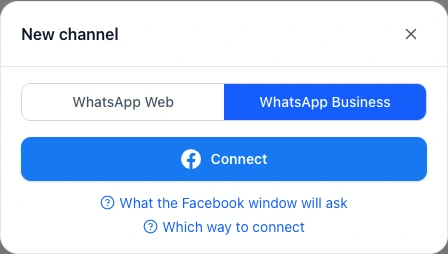 New line: in the new channel window choose WhatsApp Business and press the button with the Facebook logo.
Step 2. Sign in to Facebook
- Sign in, or press Continue if the name in the window is yours.
Someone else’s account opened — how to change it.
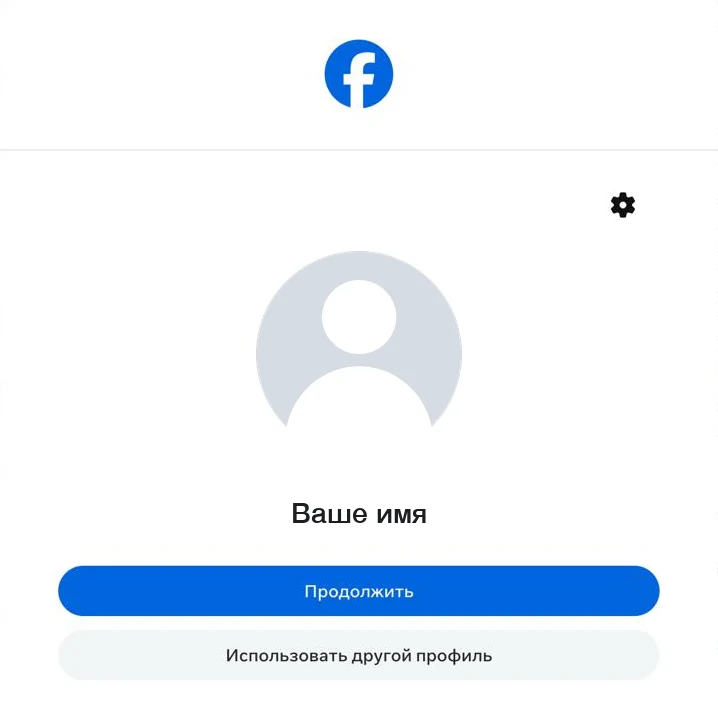 The sign-in window: your profile and the continue button. The name in the picture is an example, and the picture is in Russian.
Step 3. If Facebook asks you to confirm it is you
- Press Continue and confirm with your face, fingerprint or screen lock.
- If that does not work, choose another way.
- Not everyone sees this screen. If you do not, go to the next step.
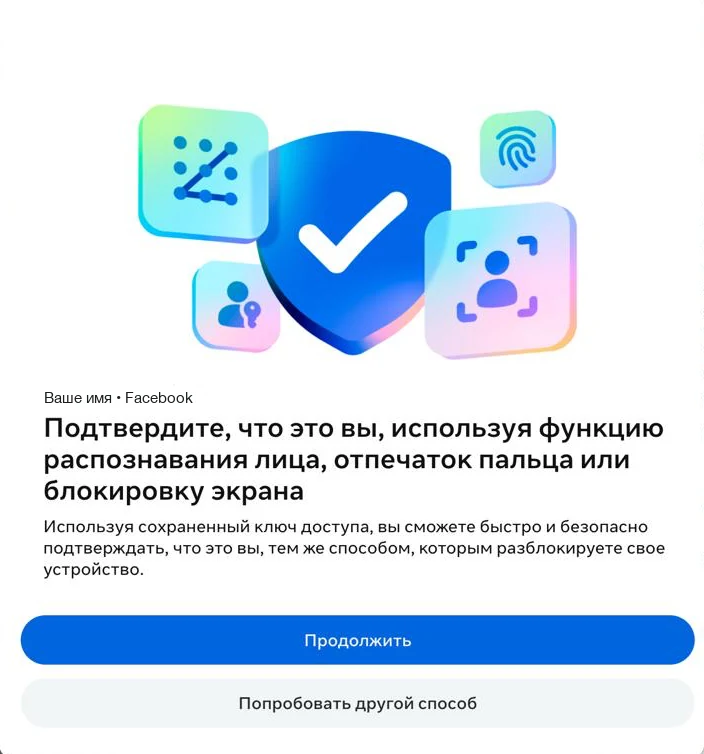 Facebook asks you to confirm the sign-in the way you unlock your device. The name in the picture is an example, and the picture is in Russian.
Step 4. Read the terms and press «Continue»
- The window says TehProf Digital Agency: that is how our company is listed at Meta. Your account connects to it.
- Read the terms and press Continue.
 The first screen of the window: the partner name, Meta’s terms and the continue button. The picture is in Russian.
Step 5. Enter the number of this line
- Choose to enter a new number, pick the country and type the number. If the number is already in the list, choose it.
- Choose how to get the code: SMS or a phone call. Then go to the next step.
- If it works in the WhatsApp Business app, Meta offers to connect the app and shows a QR code. Scan it in the app.
The list also has a virtual number option: Use a display name with a virtual number instead. Meta reviews such a name for up to 5 working days.
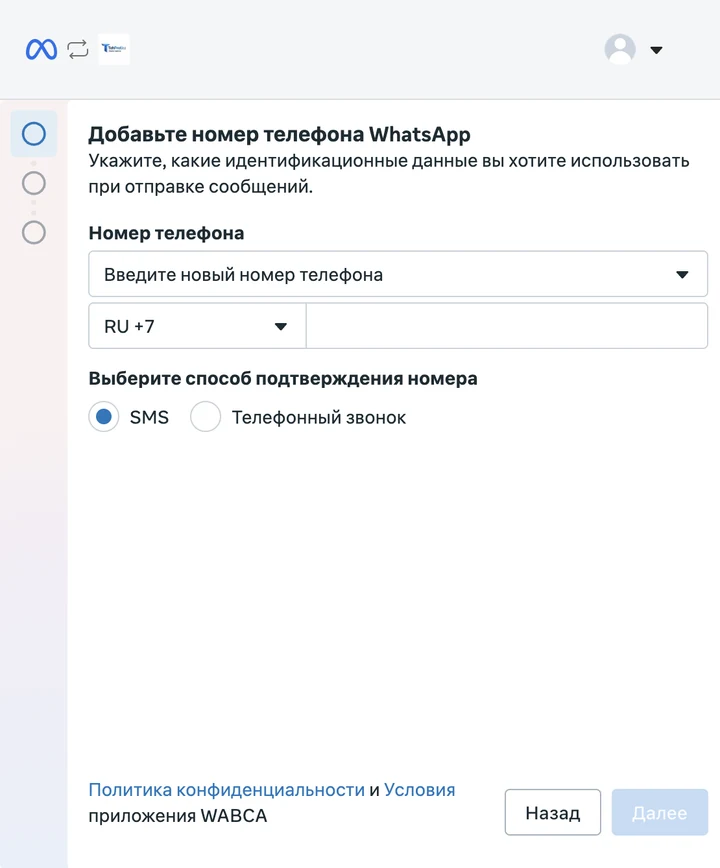 The number step: country, number and how to get the code. The picture is in Russian.
Step 6. Confirm the number with a code
- Enter the code from the SMS or call.
No code arrived — what to do.
Step 7. Choose the business portfolio and the WhatsApp account
- Choose the company business portfolio. If there is none, create it.
- Choose the WhatsApp account or create a new one.
- Go to the next step.
The right portfolio is not in the list — what to check.
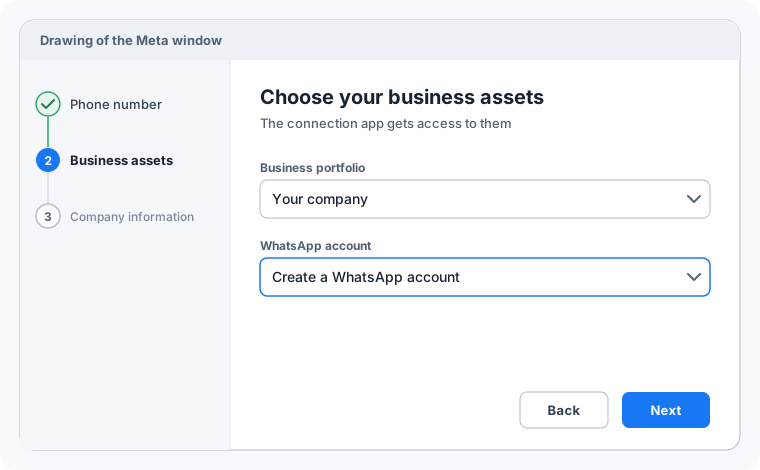 A drawing of the business assets step: Meta asks for the business portfolio and the WhatsApp account. This is a drawing, not a screenshot.
Step 8. Check the company information
- Fill in what Meta asks for, such as the display name, category and time zone.
- Wait for Done: the window closes by itself.
Step 9. Check the line
- Return to TehProf Dialogs and look at the line status in Channels.
- From another phone, write to the number and reply from TehProf Dialogs.
Something went wrong? Every window error is covered in Problems connecting through Facebook.