TehProf Dialogs brings your company’s WhatsApp, Telegram and MAX numbers and calls into one window and into your CRM. A staff member replies to clients, calls them and sees the deal without switching between programs. A manager sees who is waiting for a reply and how the team works. This page walks through the top menu from left to right.
Why it is convenient
All numbers in one window. Several WhatsApp, Telegram and MAX lines share one chat list, and every chat shows which number the client wrote to.
WhatsApp calls with recording. A call reaches the manager in the browser or in the CRM, and the conversation is recorded, transcribed and summarised.
The CRM next to the chat. To the right of the chat is the client card in Bitrix24 or amoCRM: deal, stage, fields. You can change them without leaving the chat.
A team without double replies. Everyone sees their own lines and clients, and a dialogue can be taken or handed to a colleague.
An AI assistant. Claude or ChatGPT finds who is waiting, retells a call and drafts a reply. It sends nothing without your yes — unless a manager has let the AI salesperson write on its own within set limits.
From your phone. Dialogs installs on a phone as an app — how to install.
The top menu
Everyone has their own menu: an item appears when the person has access to it. Missing an item a colleague has — the administrator opens it in the settings.
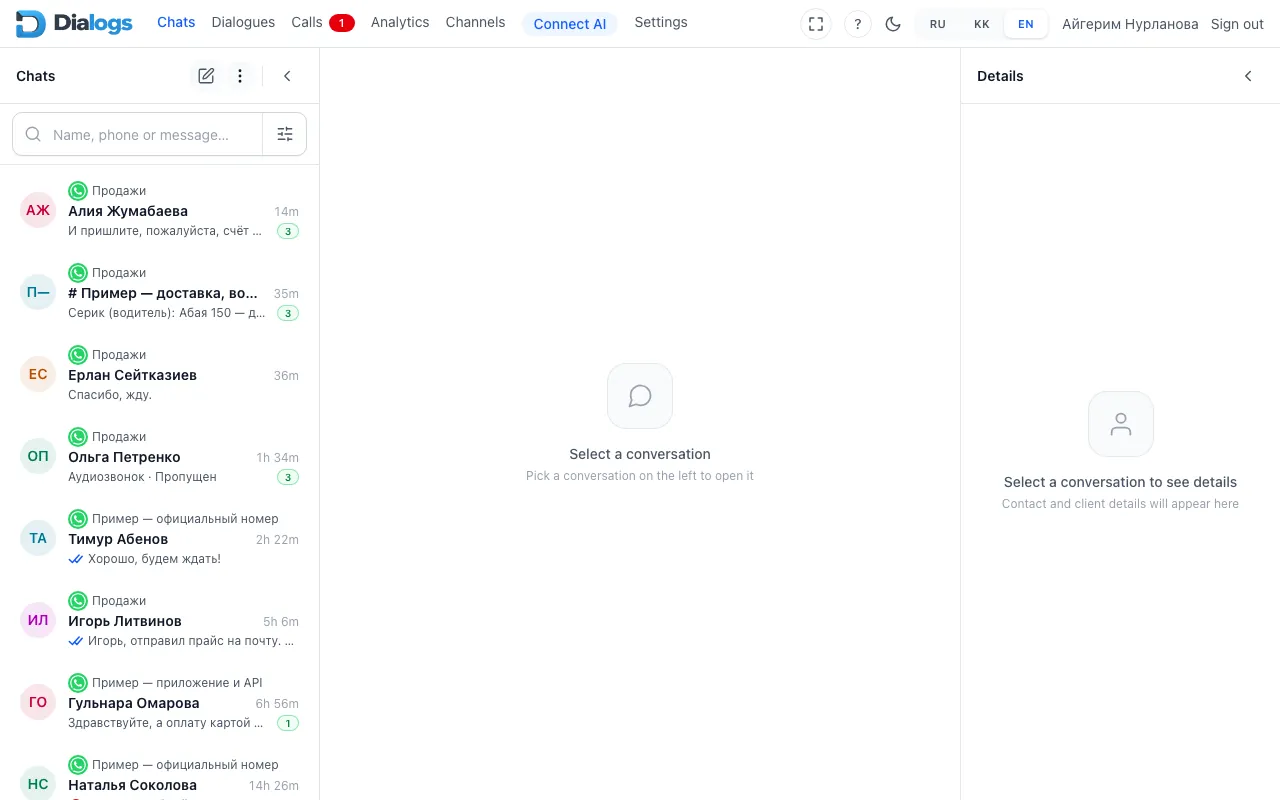
The Dialogs workspace: the menu on top — Chats, Dialogues, Calls, Analytics, Channels, Connect AI, Settings; help, theme and language on the right. The sections below follow the same order
1. Chats
The chat list on the left, the conversation in the middle, client details and their CRM card on the right. More in The Dialogs workspace.
Above the list: New chat, search by name, phone or text, and Filters: by channel, unread only, by deal pipeline and stage.
Chats split into Needs your reply and Waiting for client: answer the people waiting for you first.
Here you see who handles a client and the state of the conversation: In progress, Waiting, Completed.
A new request can be taken with Take, handed over with Transfer or closed with Complete once solved. Awaiting assignment holds requests without an assignee yet.
The administrator chooses the mode: Settings → Access rights → Channels and visibility, the Customer handler block below the table. How to reply as a team without double replies — Team work.
3. Calls
The Recent tab is the call log with a Missed filter and search by name or number. Keypad dials a number by hand.
A red number on the item counts missed calls nobody has returned yet. Called back or no call needed — press No need to call back.
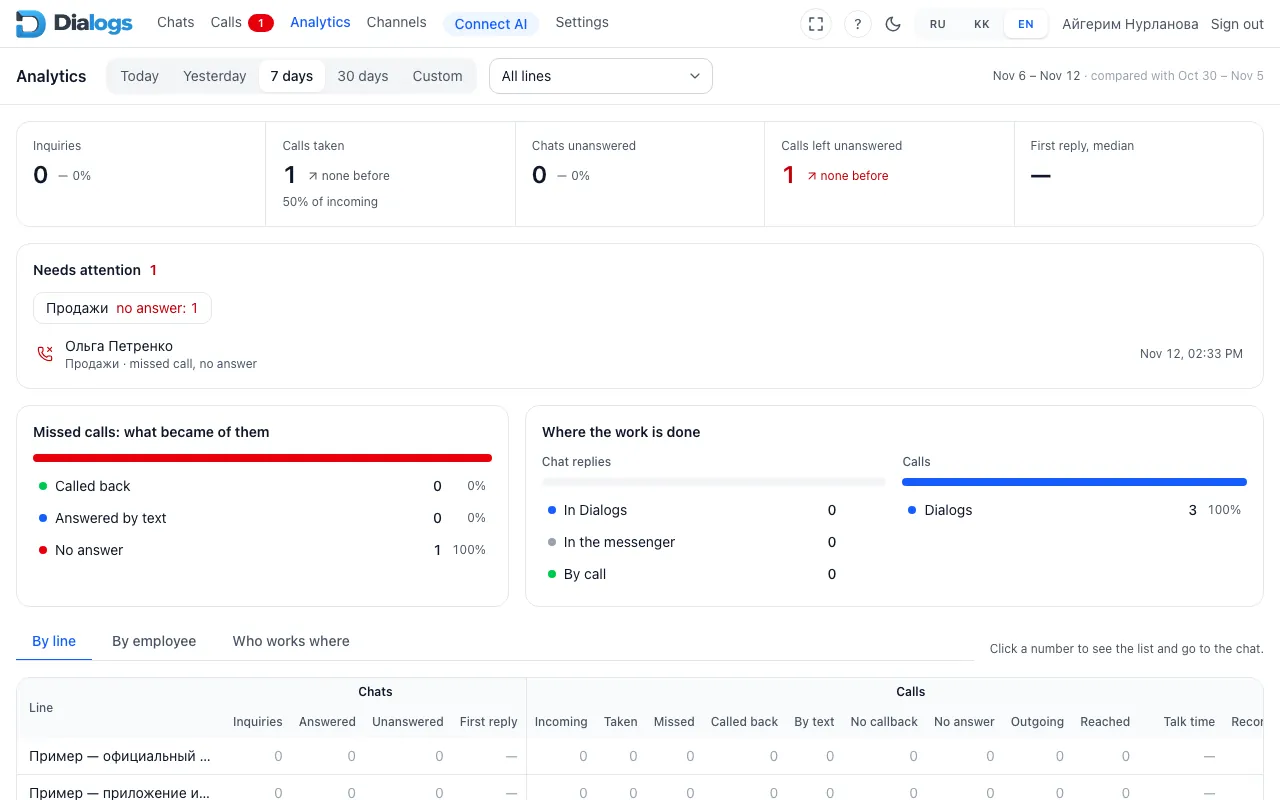
Pick the Period and the Line: the tiles show requests, answered calls, chats without a reply, first-reply time and unanswered calls, next to a comparison with the previous period.
The Needs attention block names what is urgent right now. The tables show work by line, by staff member and by where clients come from.
Click a number to open the list behind it, and from there the chat. Figures refresh every 15 minutes.
Analytics: period, line, the main figures and what needs attention
5. Channels
The company’s numbers: each line shows whether it is connected and until when it is paid.
The owner and administrator add lines: WhatsApp via QR code, Official WhatsApp, Telegram or MAX. Which to choose — Which way to connect.
The Templates button on a line leads to that line’s WhatsApp templates — Official templates.
A line dropped — a banner with the reason appears above the list. What to do — WhatsApp is not working.
6. Connect AI
Connect your own Claude or ChatGPT to Dialogs — both are in their app directories, no address to type. Cursor, VS Code and terminal programs work too.
The assistant sees exactly what you see and works in your name: it searches, reads, retells calls, drafts replies and checks deals in the CRM.
Ready assistants Sales assistant, Secretary and End of day start with one phrase. Step by step — Connect your AI assistant.
7. Settings
Profile and Notifications are for everyone: name, languages, your channels and phone notifications. Language and theme also change in the header — Choose language and theme.
Team and Access rights are for the owner and administrator: staff, departments and groups, roles, who sees which lines. Step by step — Give staff access.
Support — your requests to TehProf.kz right inside Dialogs, when the company works with us through Bitrix24.
? opens the help next to the workspace. Then the dark or light theme and the language RU, KK, EN, the full-screen button and Sign out.
Ctrl+K (Cmd+K on a Mac) opens quick navigation: start typing a section name or a client’s name.
On a phone the menu sits at the bottom of the screen; Connect AI is called AI there.
What to know from day one
Reply in one place. Choose where the team answers clients: in Dialogs or in the CRM. When people reply in both, the client gets two answers — Team work.
The customer has been silent for over a day (official number). After a day of silence from the client you can write only with an approved WhatsApp template — When an official template is required.
Write to people who agreed. Messages and templates go only to clients who wrote first or gave consent. Spam complaints get a number blocked.
One line is one number. Each line connects and is paid for separately; the first is free for 3 days.
Everyone sees their own. A staff member sees only the lines and clients given to them. The administrator changes rights, not the staff member.
The AI sends only after your yes. Before sending, the assistant shows the exact text. One exception: the owner or an administrator can turn on Sends on its own for a staff member’s AI salesperson — then it writes without a yes, but only within limits: how many a day, how many to one client and at which hours. To clients who refused marketing messages — still only after a yes.
Only calls through a line are recorded. A call from a personal phone past the line is invisible to Dialogs. Warn the other person about recording — Call recording.
Codes and passwords only in the Dialogs window. Never forward them to a chat, a colleague or the AI assistant — Sign in to Dialogs.
A colleague has a menu item and I do not
Items depend on your rights and on what is turned on in the company. The administrator opens Analytics with the Sees the analytics switch or an access role, Dialogues appear with client assignment, Calls when calls are on for a line. Write to your administrator.
Where are message templates?
In Channels — the Templates button on the line. In a chat, saved replies come up with / in the reply field — Find a saved reply.